Lightroom CC for Model Shoots and Photos of Stacey
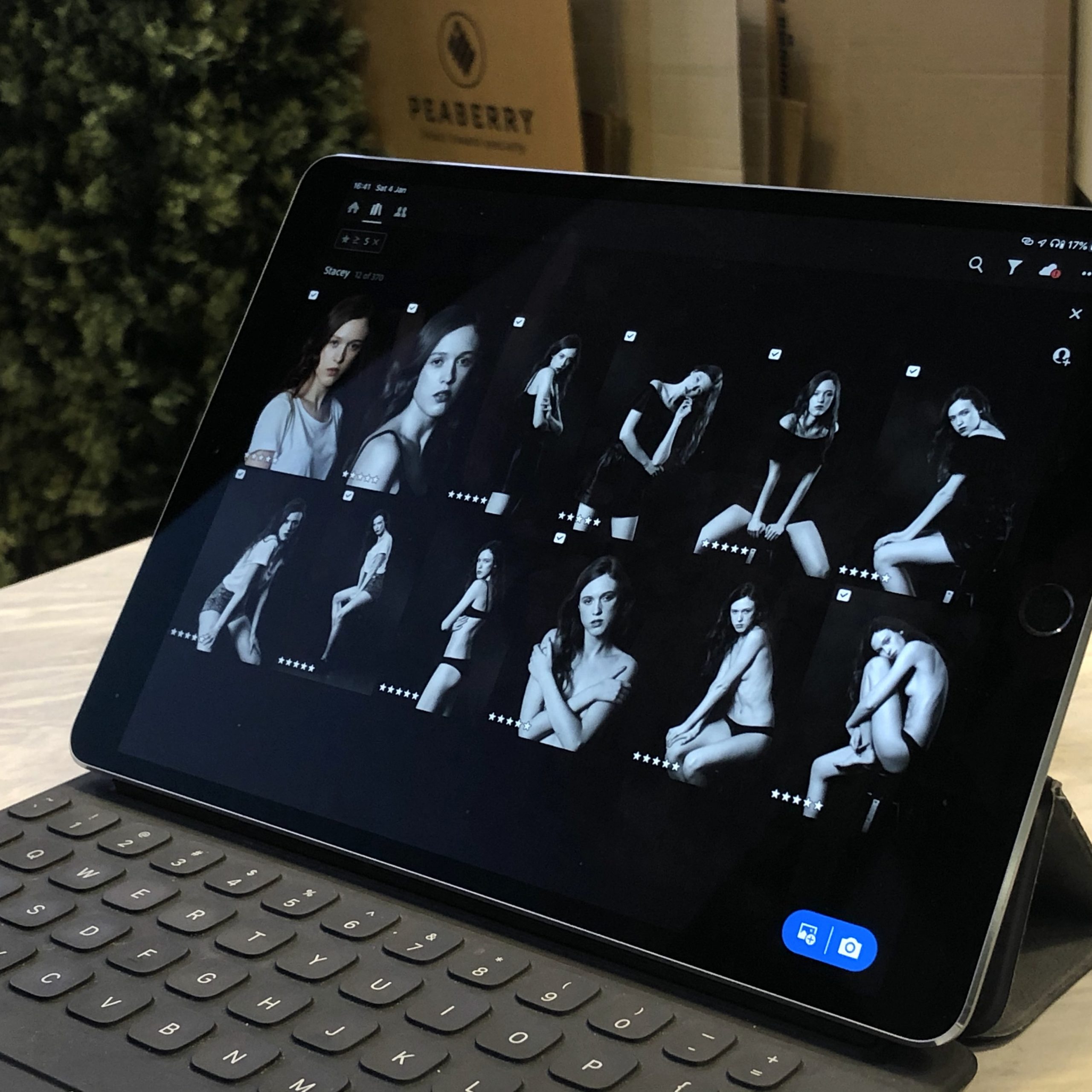
I have no doubt that Lightroom CC will eventually replace the Classic version completely. Apart from saving Adobe the cost of developing two “identical” programs, LR CC is simply much better optimized because it was written relatively recently with current-generation hardware in mind, while LR Classic is a lumbering beast with new code constantly bolted onto it (although Adobe has improved it a great deal lately).
Still, it will be a long time before Lightroom CC completely replaces the classic version—the difference in functionality remains substantial for now. Even so, I often developed photos other than those from photo shoots in CC rather than Classic, because all the basic options were already there, including copying settings and pasting them onto other photos. So I was no longer missing anything for simple snaps, but I had never used Lightroom CC for shoots with models and decided to see whether I could finally start. I tested it during a shoot with Stacey, an 18-year-old model from Russia who began a contract in Bangkok a few weeks ago.

Why do I want to use Lightroom CC instead of Classic?
I really value being able to copy photos to my computer and select them away from home on an iPad. This lets me do it whenever I have a spare moment, rather than only when I am at the computer. While I work on the photos, LR synchronizes everything in the cloud, so it does not matter which device I use for what. As long as I used Lightroom CC for snaps unrelated to photo shoots, I deleted the RAW files after finishing the processing and saving the JPEGs, because I no longer needed them for anything. This meant my cloud was usually empty.
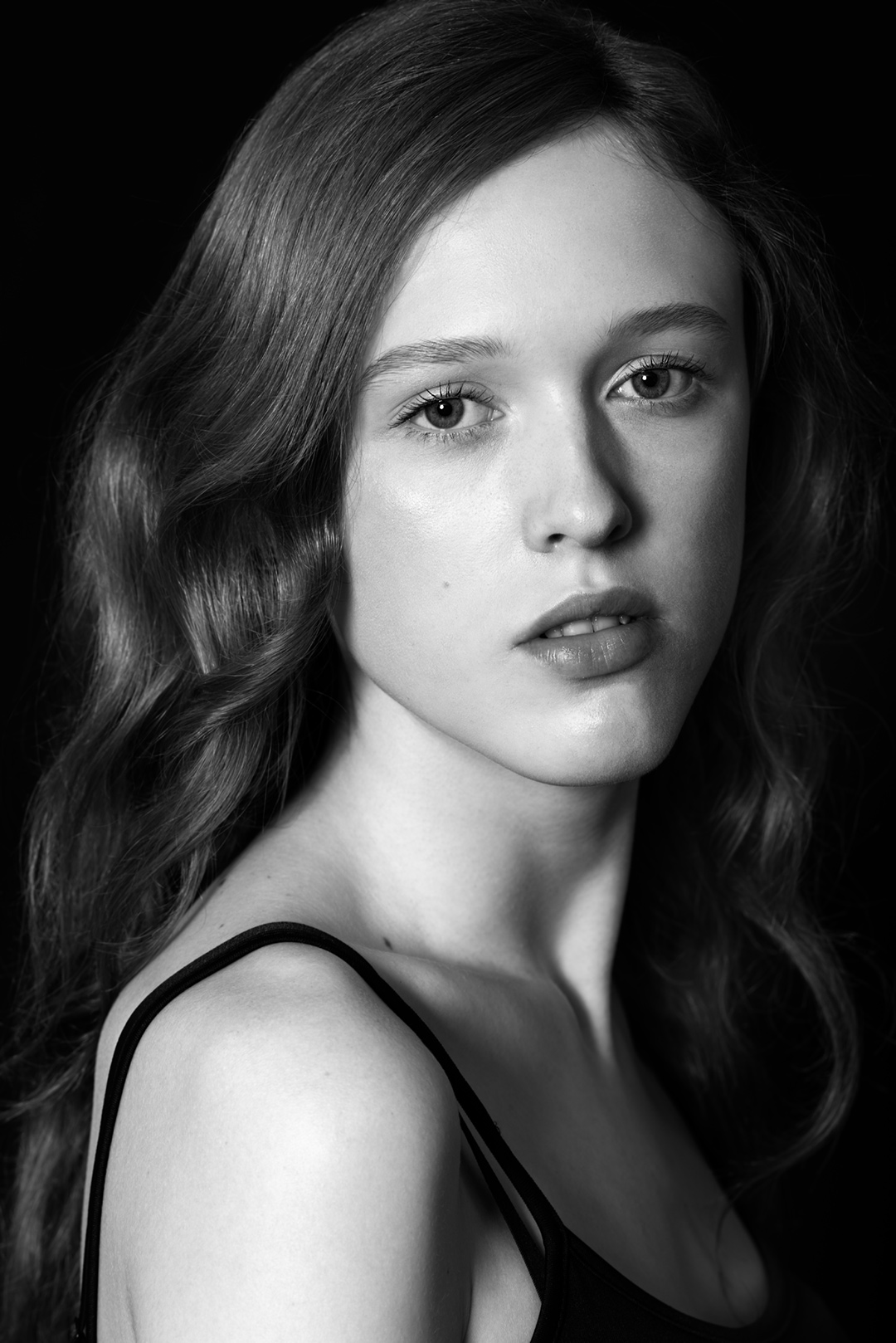
For shoots with models, I keep the RAW files, but my requirements when it comes to software features are still modest, or at least that is what I thought. They are certainly much lower than those of wedding photographers, for example, or generally people who handle their photos from start to finish in Lightroom without further processing in another program.
View this post on Instagram#testshoots #testshoot #testshootmodel #bwphotograpy #fashionmodel #135mm #bw
A post shared by Thomas Voland | 🇵🇱🇹🇭 (@thomas_voland) on Jan 3, 2020 at 2:58am PST
With photos of models, I use Lightroom only for selection, setting white balance and preliminary cropping, possibly also for correcting lens flaws and making small changes to a few basic settings. Everything else happens in Photoshop, not Lightroom. That is why I thought perhaps the time had finally come to make LR CC my primary tool for selecting and developing RAW files, even for shoots with models. Selecting photos for editing and cropping them would be extremely convenient because I could do it at any time, for example while sitting in a café after lunch. Besides, you often go out to eat after a shoot, so I could then hand the model an iPad and let her choose her favorite shots. I rarely make the final selection in a single pass myself. I tend to look through the photos, make a preliminary choice, then return to them and choose the best of the best (I showed this entire process in my webinar about photo selection). That is why I consider being able to make selections at any time a major advantage.
Mobile selection in Lightroom CC
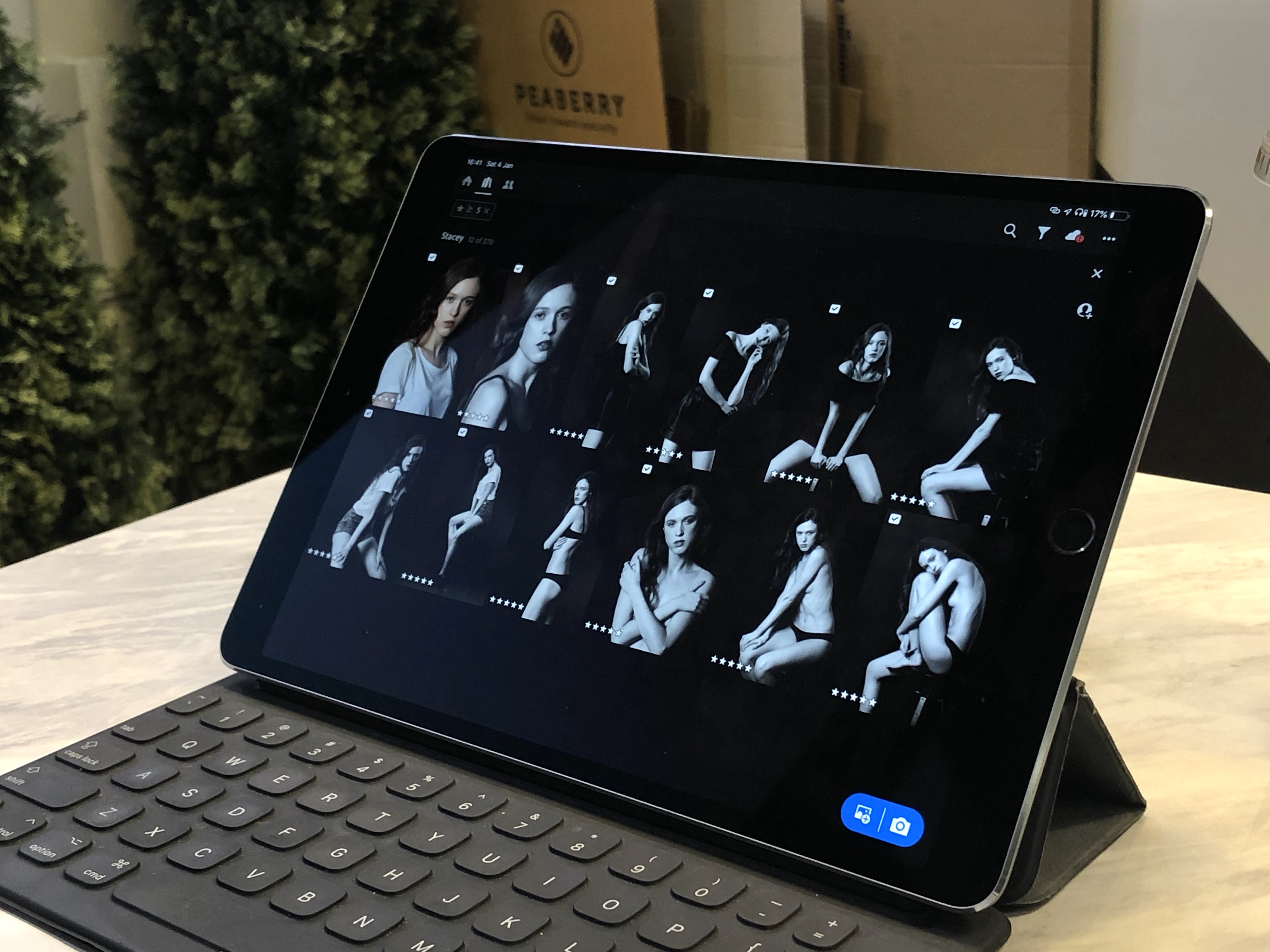
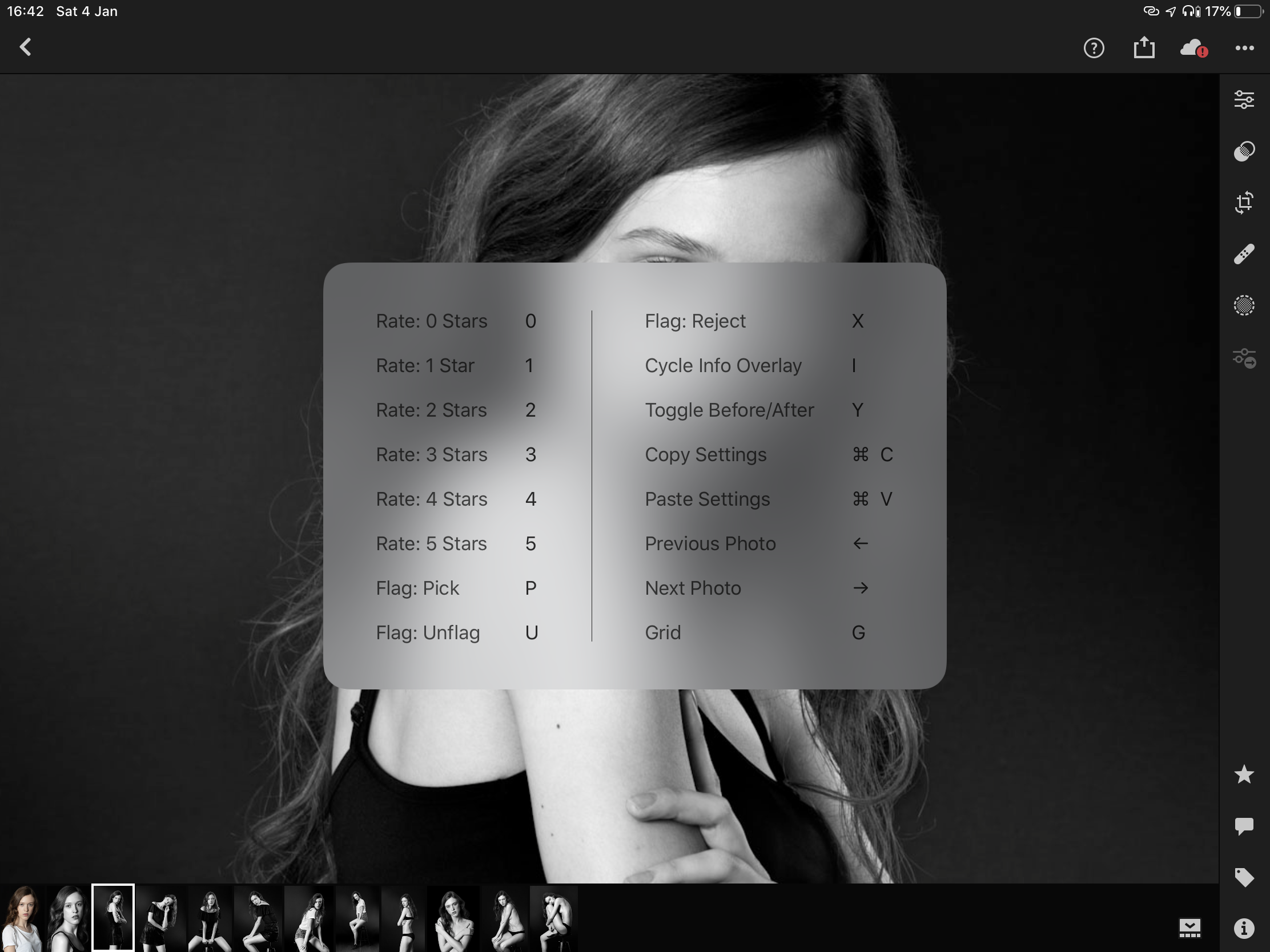
Photo selection is handled brilliantly in the mobile version of Lightroom CC—you swipe a finger up or down on the right side of the screen depending on whether you like a photo or not. You can also assign ratings (stars) from 1 to 5 by sliding a finger along the left side of the display. It works even on a phone. Instead of swiping around the screen, you can use a keyboard, but unfortunately its usefulness ends with selection (so, for example, I have to choose the crop tool by touching the screen). LR CC does not offer color labels for photos, but I do not miss them.
The entire program is very comfortable to operate with your hands alone. I have even lost the habit of pulling the stylus out of my bag, which used to be my reflex whenever I worked with any graphics app—in LR it is completely unnecessary. The interface is large enough to be usable, yet it does not take up more space than needed. Another advantage of Lightroom CC is the excellent performance of the mobile version. I use it on a 10.5-inch iPad Pro and zooming is perfectly smooth, although full sharpness does not appear immediately but after a minimal delay.

Workflow
My Lightroom workflow is very simple—I connect the memory card to my computer and import the photos from it into LR CC. I can already leave home while this is happening, and when I launch Lightroom on the iPad, I can review and develop all the photos from that shoot, while everything synchronizes with the computer. I use Smart Previews instead of downloading the full files. For what I do, this solution has no disadvantages, only advantages, because the files load faster.

Lightroom CC vs. the Adobe cloud
I use the cheapest Photography Plan, which includes only 20 GB of cloud storage. The 1 TB version costs twice as much, and if I wanted to move my entire photo library there, even that would not be enough, while no larger option exists at all. As long as I only want to keep one shoot in the cloud, 20 GB is manageable. So little space does not prevent me from working, but it can be limiting. In the past, I very often did several shoots in one day and will probably do so many more times, and then there will not be enough room for the RAW files in such a small amount of storage.
Before copying the shoot with Stacey, I had not deleted the previous photos from the cloud, including some fairly large Photoshop files, which left too little space for the new RAW files. Thanks to that, I discovered that Adobe's cloud was still seriously imperfect. I started deleting unnecessary files, but LR took quite a while to realize that space had been freed, and restarting the app did not speed up the process. Once it noticed the free space, it started synchronizing, but LR on another device still reported that there was no room, and an unnecessarily long time passed before it began pulling in the photos.
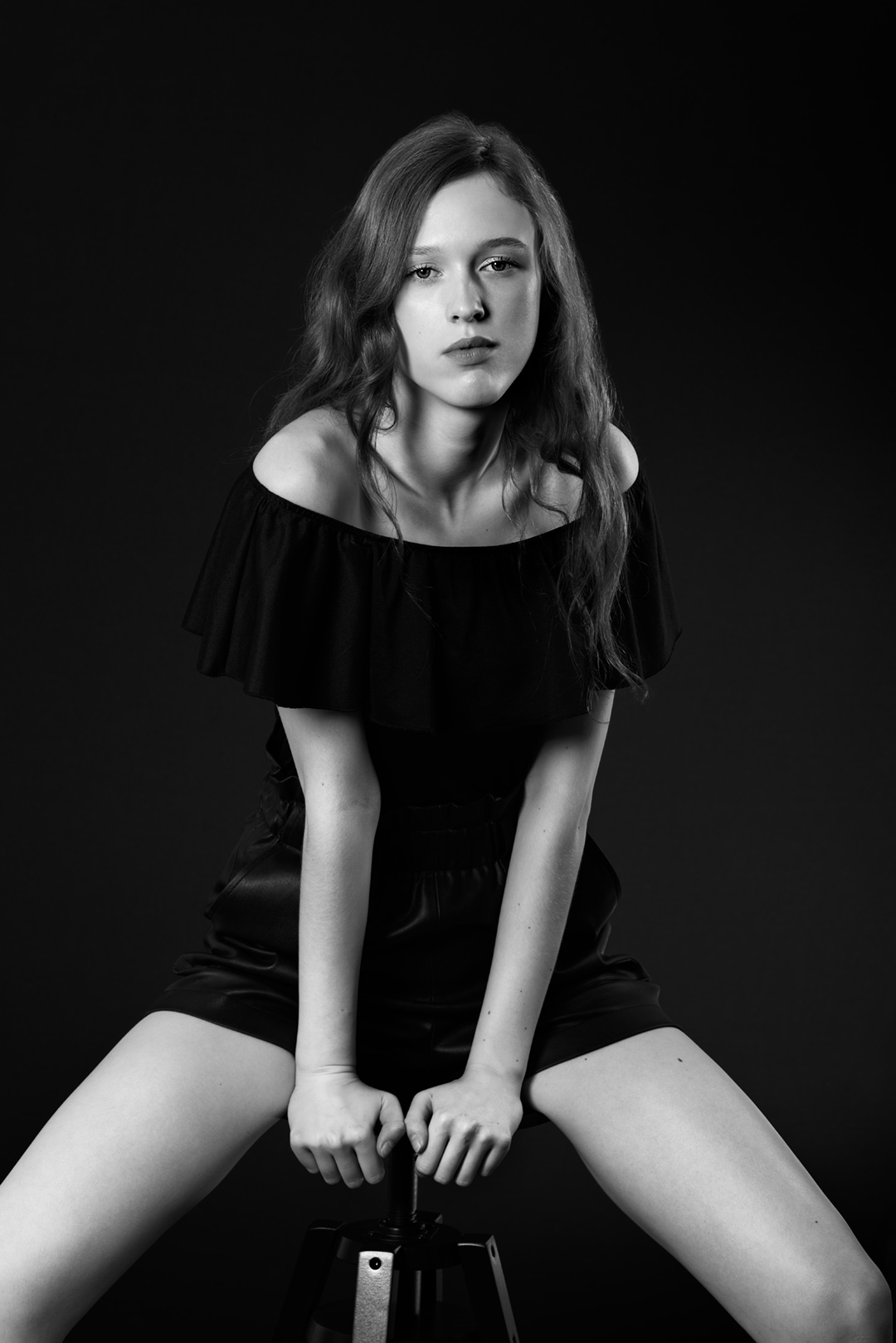
In the future, I will always make sure I have enough free space before I even import photos from a memory card. When enough space is available from the start, synchronization works very efficiently and I have no complaints about it. I would like Adobe to add support for other clouds in the future, such as iCloud, but I doubt that will happen because it would limit their perfect way of increasing revenue.
Lightroom CC for shoots with models and its limitations
I have very few complaints about the mobile version of LR. Selection, cropping, copying settings and so on work brilliantly. What is more, hardly anyone should complain about its performance. The problems start once that stage is behind me and it is time to begin working in Photoshop (on the computer). In other words, exactly when I would least expect complications, because everything I needed LR for has already been done, right? No…
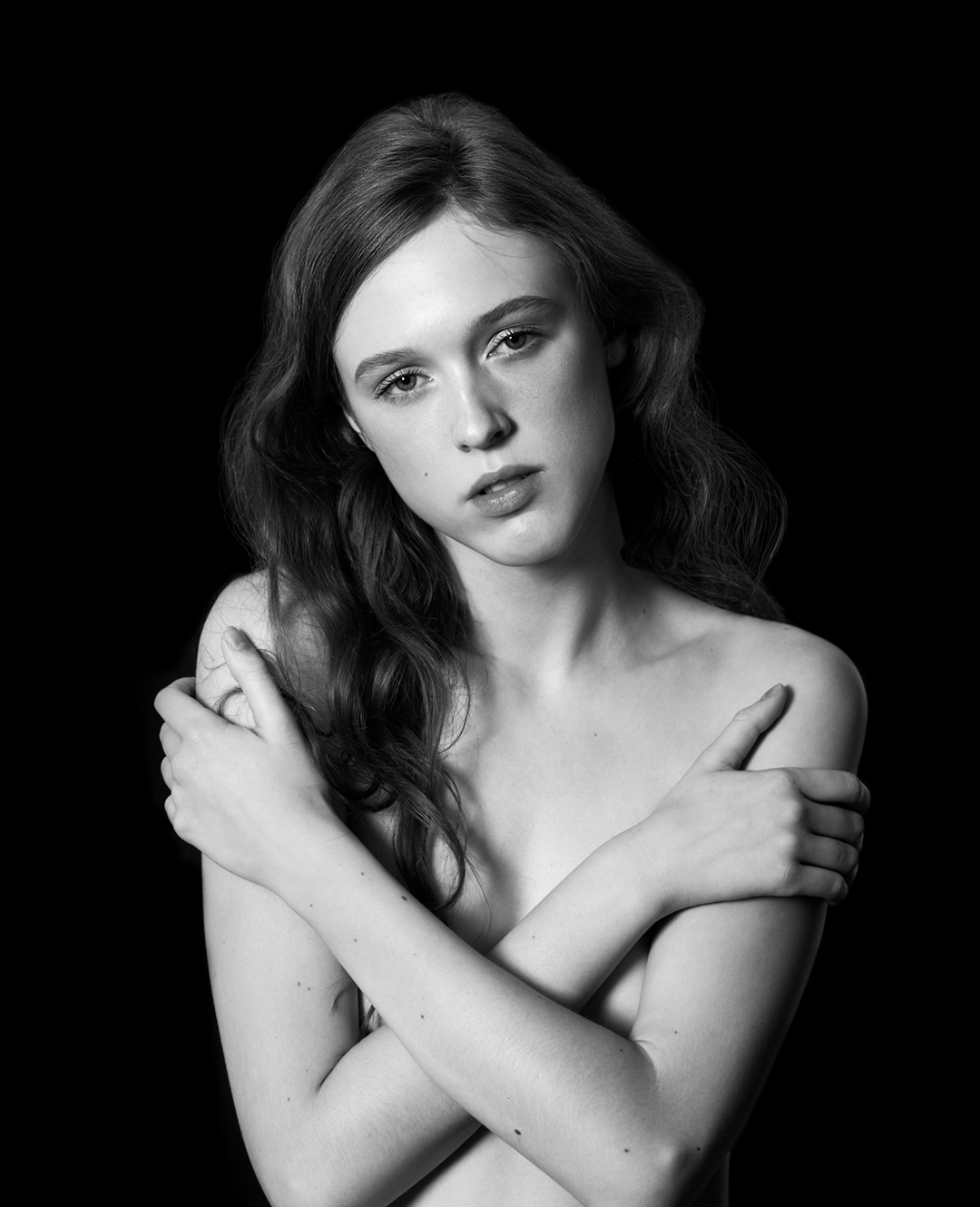
First, you cannot define the color space or the number of bits per channel in which the photo is to be exported to Photoshop. This is not a major problem because everything is sent in 16 bits per channel in the ProPhoto RGB space, so you can perform any conversion after opening the photo, but I would like this option to be added.
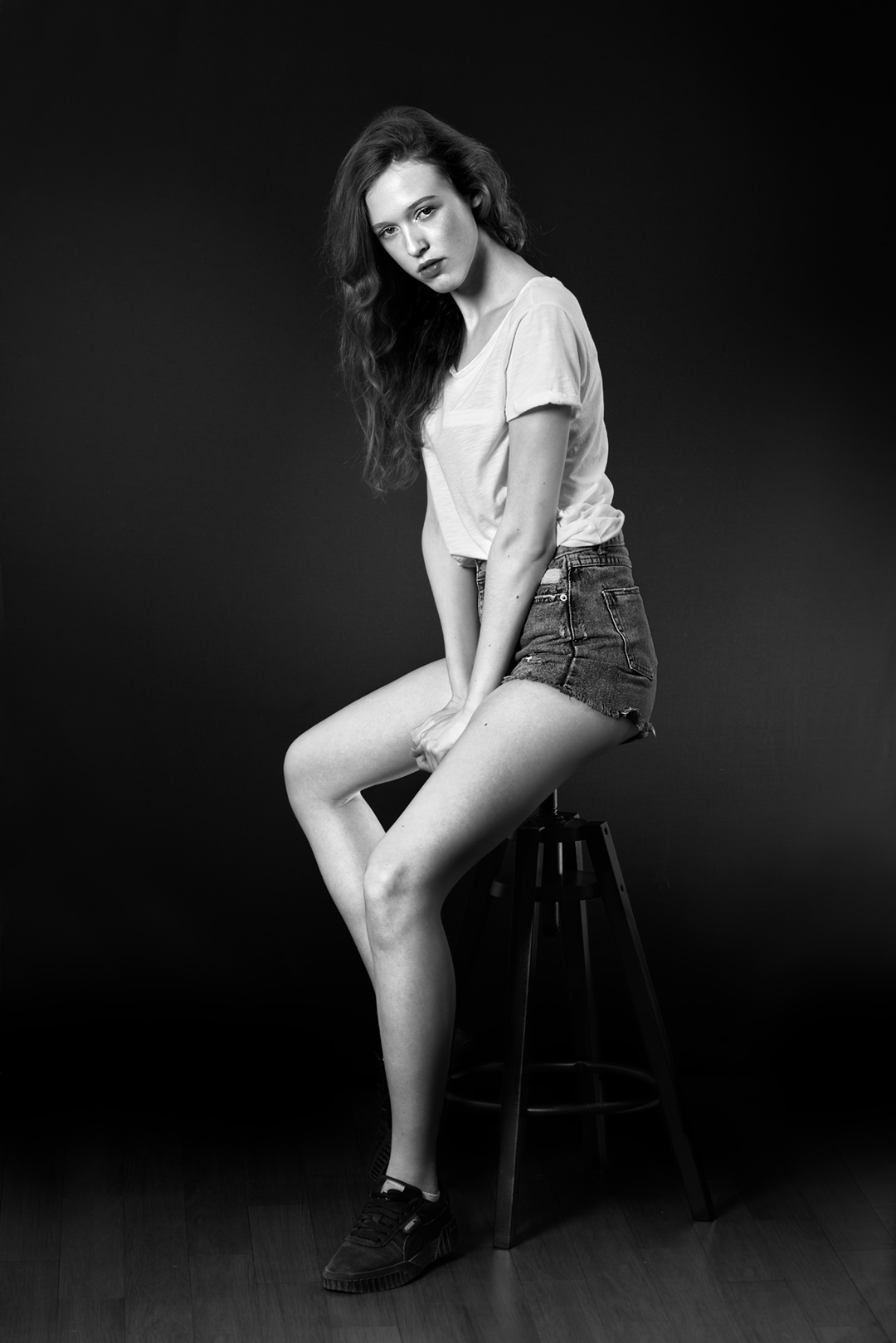
Second, you cannot use PSD/PSB files, only TIFFs. I explained why this is a mediocre solution in the article about Photoshop performance. If I manually save a photo as a Photoshop file after opening it in Photoshop, LR will create a TIFF anyway. What is more, the program saves a separate file each time instead of overwriting the previous one. So if I edited the first photo, closed it and then opened it again to finish the edit, I will have two files. If I opened a photo 10 times in PS, 10 files will be created, and this option cannot be disabled—you can only delete the files created this way. Considering that these are layered files anyway and that I make plenty of regular backups, this solution has no advantages for me and only creates a mess.

Third, the largest thumbnail size is absurdly small on a 32-inch 4K display. In regular Lightroom, I can make the photos so large that the thumbnails alone tell me which photo is worth a closer look and which I can delete. In LR CC, everything is small enough to be completely useless.
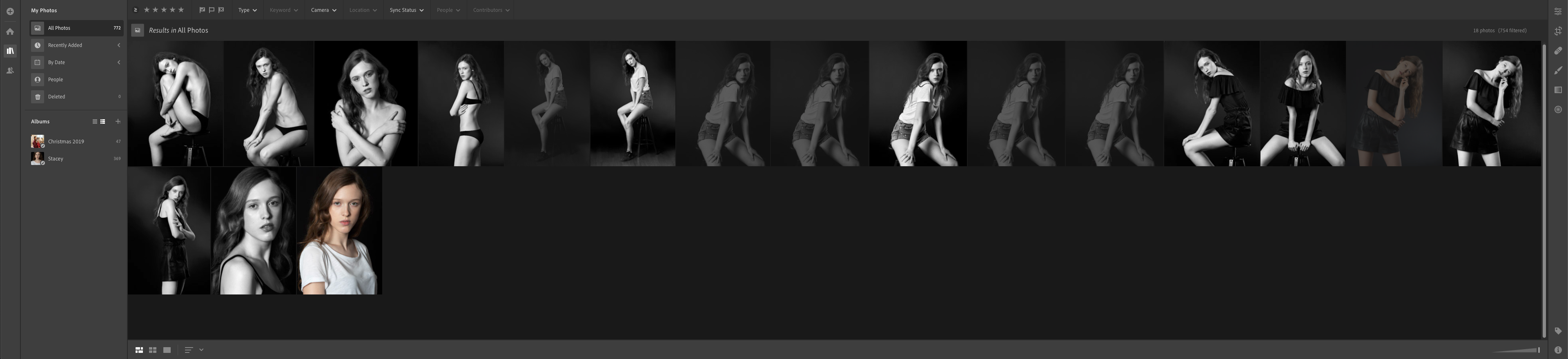
When the view that displays ratings and flags is enabled, the thumbnails become even smaller, so I would have to use system scaling for them to be of any use.
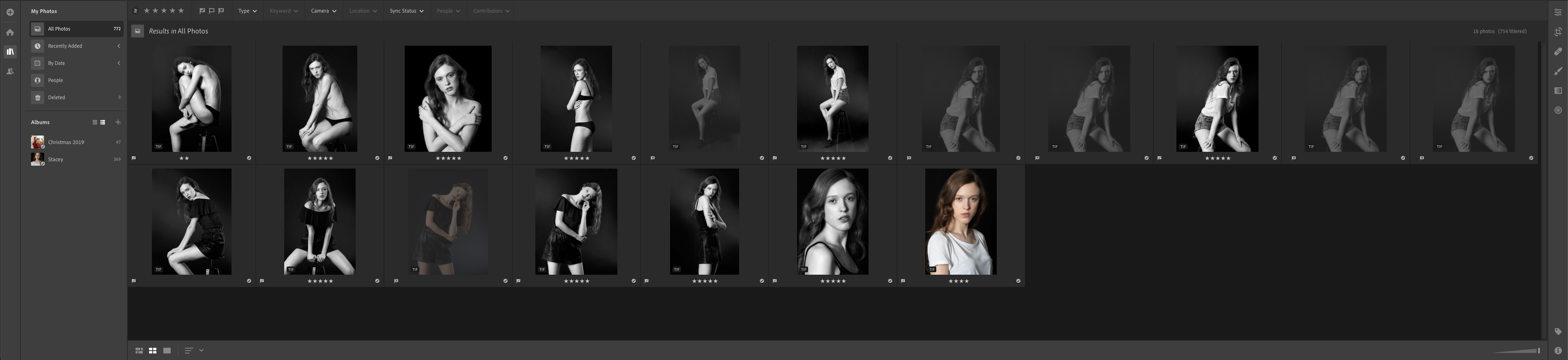
Interestingly, mobile LR does not shrink thumbnails to show ratings and so on, but displays all of that directly over the photos. Ideally, you could choose either of these options yourself, both on the computer and on the tablet.

Fourth, I encounter filtering bugs, but I suspect they will be patched any day now, so I do not attach much importance to them. The fact remains, however, that while working on this shoot I could not filter the photos so that I saw only Photoshop files. When I entered the file extension I wanted to see (in all sorts of ways), LR CC either did not show the files at all or displayed 1 file out of several that existed, even though no other filters were active. At other times it filtered perfectly… Because of this, I had to change my photo-rating method slightly so that I had a separate rating assigned only to Photoshop files.
Viewing photos on a computer
I miss several options that I value in the classic version of LR. One is the multi-monitor mode, which I admittedly use on a single display, but it works brilliantly for me because it adds a window with a huge photo preview (just like Adobe Bridge). There is also no mode for comparing two photos, meaning the display of 2 huge photos side by side that zoom and pan in sync.
View this post on InstagramA post shared by Thomas Voland | 🇵🇱🇹🇭 (@thomas_voland) on Jan 3, 2020 at 11:51pm PST
Summary
Everything that bothers me about Lightroom CC is fairly easy to fix. The only question is how high a priority these features are for Adobe. I suspect that color-space and bit-depth management, for example, is very high on their list, but multi-monitor support is at the very bottom. The program itself, however, is very well written—it is stable, efficient and has the potential to become a much better app than Classic Lightroom, which would have to be rewritten from scratch. In fact, the CC version is exactly that—Lightroom written from the ground up according to today's standards. One thing is certain: LR CC is 100 times better as an app than the iPad version of Photoshop.