2018-2020 Mac mini, part 1 - a computer made for photographers?
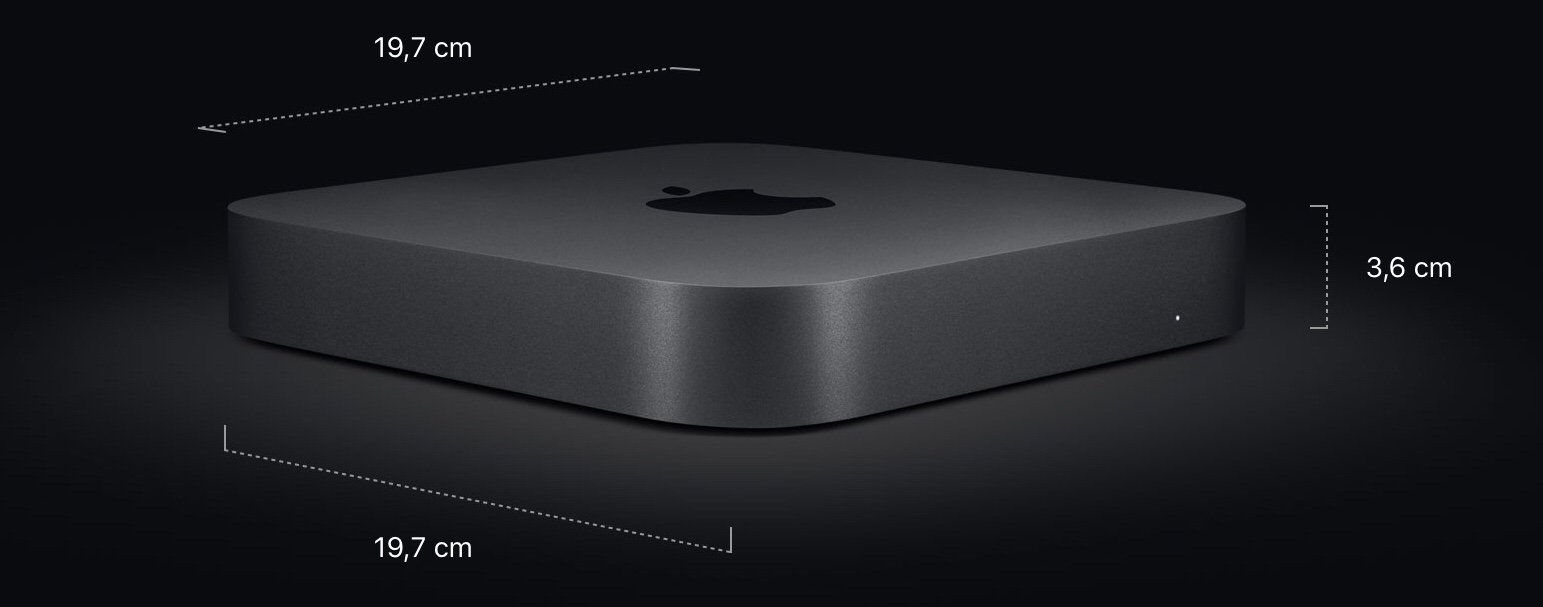
At the end of 2018, we finally got a new Mac mini. And this isn't the parody we got four years earlier, but a genuinely excellent computer and a worthy successor to the 2012 Mac mini, which had been very popular, including among photographers. The new model still uses a case just as small as before, so you can still easily take it to a studio for tethering, pack it for a flight, and so on. Not having a screen like an iMac is a huge advantage. It keeps the computer portable and lets you connect a much better monitor for working on photos, without paying for a display you wouldn't use anyway. Of course, the new Mini isn't flawless. I'll cover its problems too.
Note! A "new" Mac mini came out in 2020, but it's the same model as the 2018 version, only with a slightly different pricing policy. All the information below about the 2018 Mac mini is therefore still current. The upgrade prices for some parts are simply lower now, or you get more storage for the same price.Table of contents
Introduction Inputs/outputs What you need to know about the components - Processors - RAM and upgrading it yourself - Storage and expanding it over USB or Thunderbolt - Graphics card and eGPU - What the T2 chip does Which configuration is right for whom What I bought and why Summary Follow-up
There's a lot of conflicting information about this computer online. Some tests show that the processor maintains its clock speed even under maximum load, while others report throttling. Drive speeds differ severalfold between reviews, and so on. I'll go through all these subjects one by one, explain where the differences come from, and say which configuration is right for whom.

I'll focus on how to get the best possible Mac mini for a reasonable amount of money. If that doesn't matter to someone, they can simply order the highest configuration from Apple and be done with it. But then the price will be completely out of proportion to the components because Apple's upgrade prices are astronomical. I suspect most people don't want to overpay, though. Since you can save an enormous amount on the Mini without giving up maximum performance, I'll mention those savings often.
Inputs/outputs
The new Mac mini has four Thunderbolt 3 ports - each one gets the full 40 Gb/s of bandwidth. You can use them to connect an external graphics card, hard drives (including very fast NVMe SSDs), a modern NAS, and so on. They're also the best way to connect monitors because Thunderbolt includes DisplayPort and USB-C. The standard network adapter is 1 Gb/s, but a 10 Gb/s version is available for an extra 400 zł.
As I mentioned, the Thunderbolt ports also support USB 3.1 Gen 2, meaning USB-C with transfer speeds up to 10 Gb/s. There are also two USB 3.0 ports (5 Gb/s), the kind with the "old" USB-A plugs. You can also connect a display over HDMI 2.0 (4K at 60 Hz). There's also a 3.5 mm audio output jack, but like other Macs from recent years, it no longer has an optical output. On top of that, there's Bluetooth 5.0 and 802.11ac Wi-Fi. If you need Thunderbolt 2 or VGA, you'll have to buy a separate adapter.

Monitors You can connect three 4K 60 Hz displays at the same time: - two at 4096 x 2304 px over Thunderbolt 3 - one at 4096 x 2160 px over HDMI 2.0.
You can connect a 5K 60 Hz display over Thunderbolt 3. In that case, instead of two additional 4K 60 Hz displays, you can use only one, connected over HDMI 2.0.
I don't think anyone has tested the performance of such UHD/UHD+ multi-monitor setups yet, but I'd be very surprised if they ran smoothly without an additional graphics card. After all, we're talking about a workspace larger than twelve standard 24-inch monitors at 1920 x 1080 px.
What you need to know about the components
Let's move on to the most interesting part: the components in the new Mac minis. Depending on the configuration, the performance-to-price ratio can be genuinely good or downright absurdly bad, so there's plenty to discuss.
Processor models
There are three processors to choose from. Each one is a desktop version, not a mobile chip like those in laptops and earlier Mac minis. As a result, they're very fast. All of them have a TDP of 95 W, but these days that figure tells you very little because it only describes operation without Turbo Boost, which modern processors use almost all the time.
The B in the processor names means they're desktop versions that don't go into a socket, but are soldered to the motherboard. You need to think the purchase through carefully because you won't be able to upgrade the processor later.
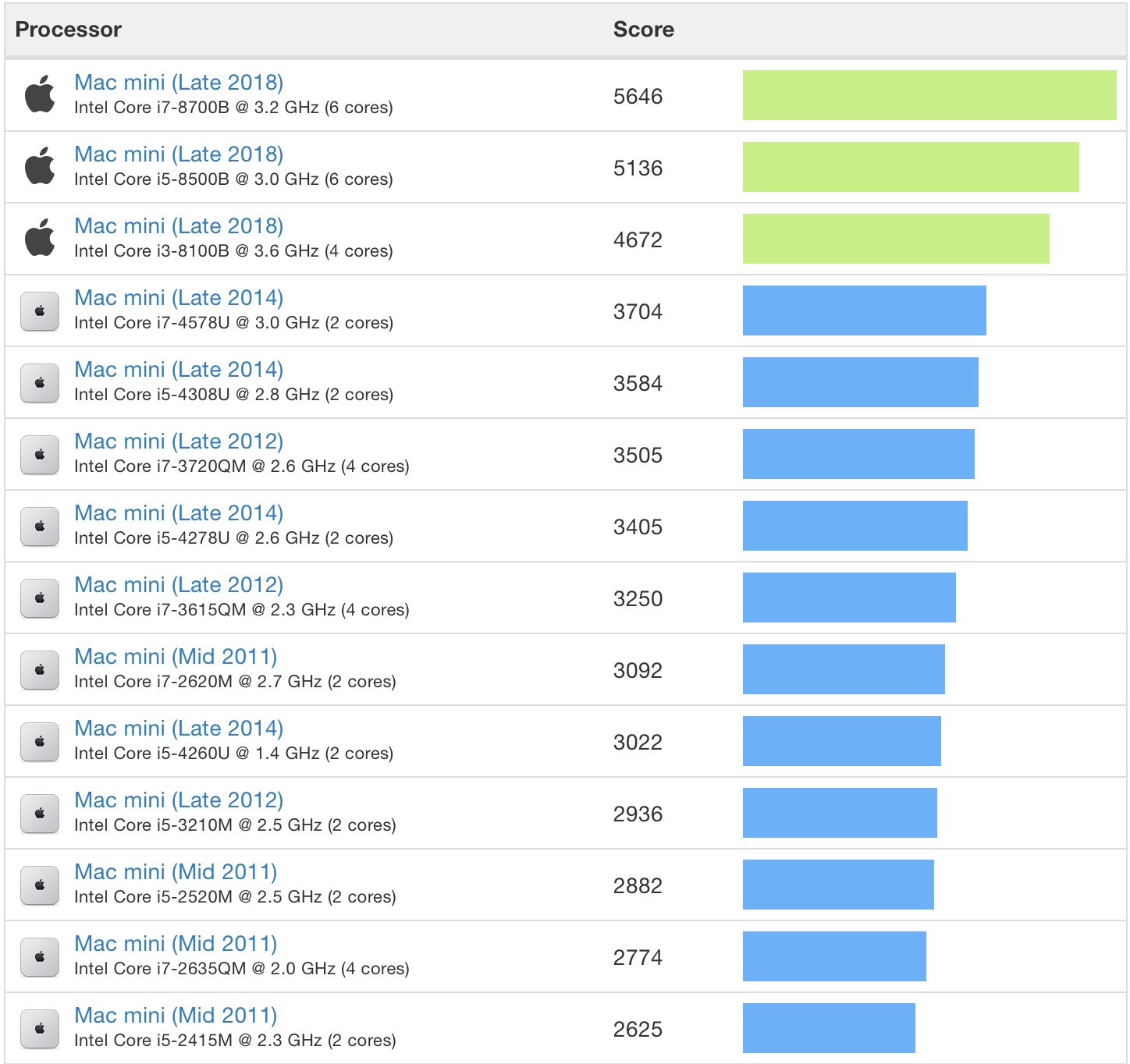
i3-8100B 3.6 GHz The cheapest option is a quad-core processor without Turbo Boost or HT. According to various tests, it performs about as well as the fastest 2012 Mini or beats it by no more than around 30%. In reality, working on the new model will be far better, but the CPU itself is at most one-third faster. That isn't a stunning result when you consider the six-year gap between them. Still, we're comparing today's weakest processor with the best one available back then.
i5-8500B 3.0 GHz (4.1 GHz) A six-core processor with Turbo Boost up to 4.1 GHz and no HT. It's much more versatile than the i3 and, thanks to Turbo Boost, faster in every situation. For many people, this processor will offer the best performance-to-price ratio. However, you can only get it with at least a 256 GB drive, while the i3 and i7 can be ordered with as little as 128 GB.
i7-8700B 3.2 GHz (4.6 GHz) A six-core processor with Turbo Boost up to 4.6 GHz and HT, so the system sees 12 cores. I suspect the extra Turbo Boost clock speed will be much more useful for photography than HT. It costs 960 zł more than the i5. The single-core performance difference is small, but it becomes very large in multi-core work.
Below are Geekbench results for the processors in the latest Mac mini and the previous models.
Processors - single core:
Processors - multiple cores:
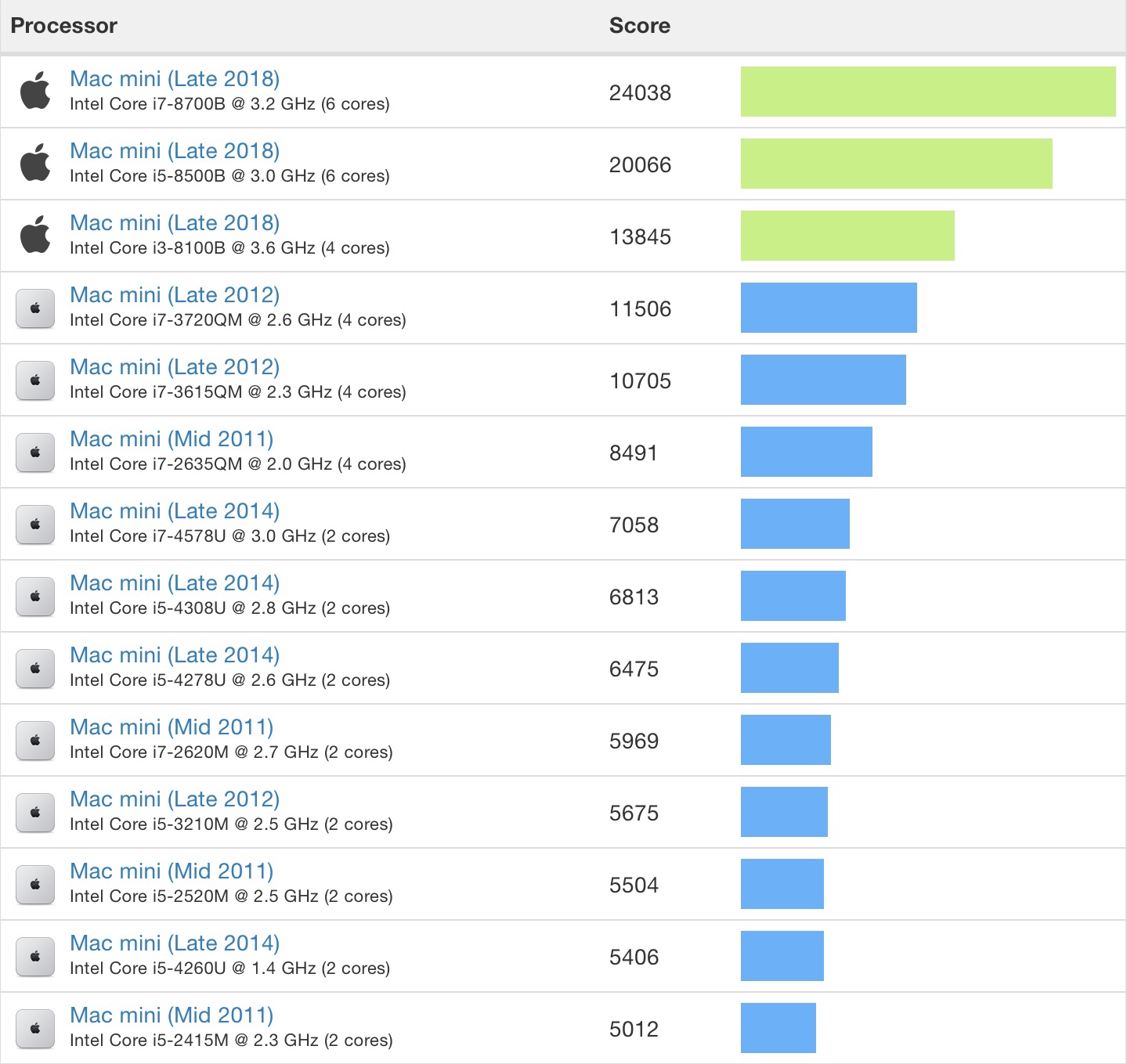
In practice, the difference between the 2012 and 2018 models will be much greater than the CPU benchmark suggests. Adobe applications haven't had graphics acceleration on the 2012 Mini for several years, which makes comfortable work impossible. It isn't just about performance, but comfort: smooth zooming, working at nonstandard zoom levels without jagged edges, and so on. There are obviously many more differences. The drives are four times faster, and everything runs on a much faster bus (2666 MHz).
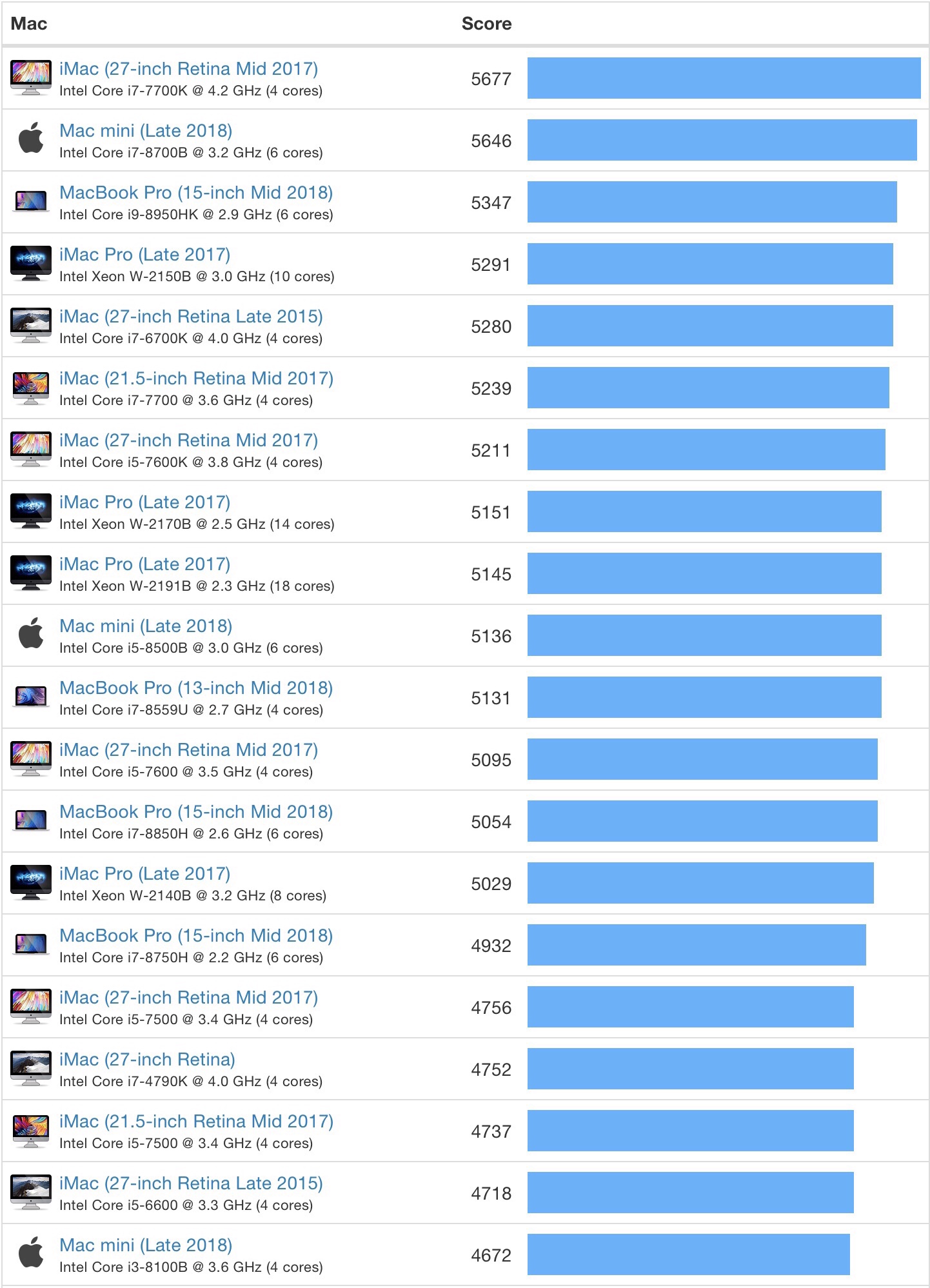
Comparing it with the previous models is beside the point, though. This is really just information for people who once owned one of those computers or still do. We should look at results comparing all models, preferably without focusing only on their processors:
Computers - single core:
Computers - multiple cores:
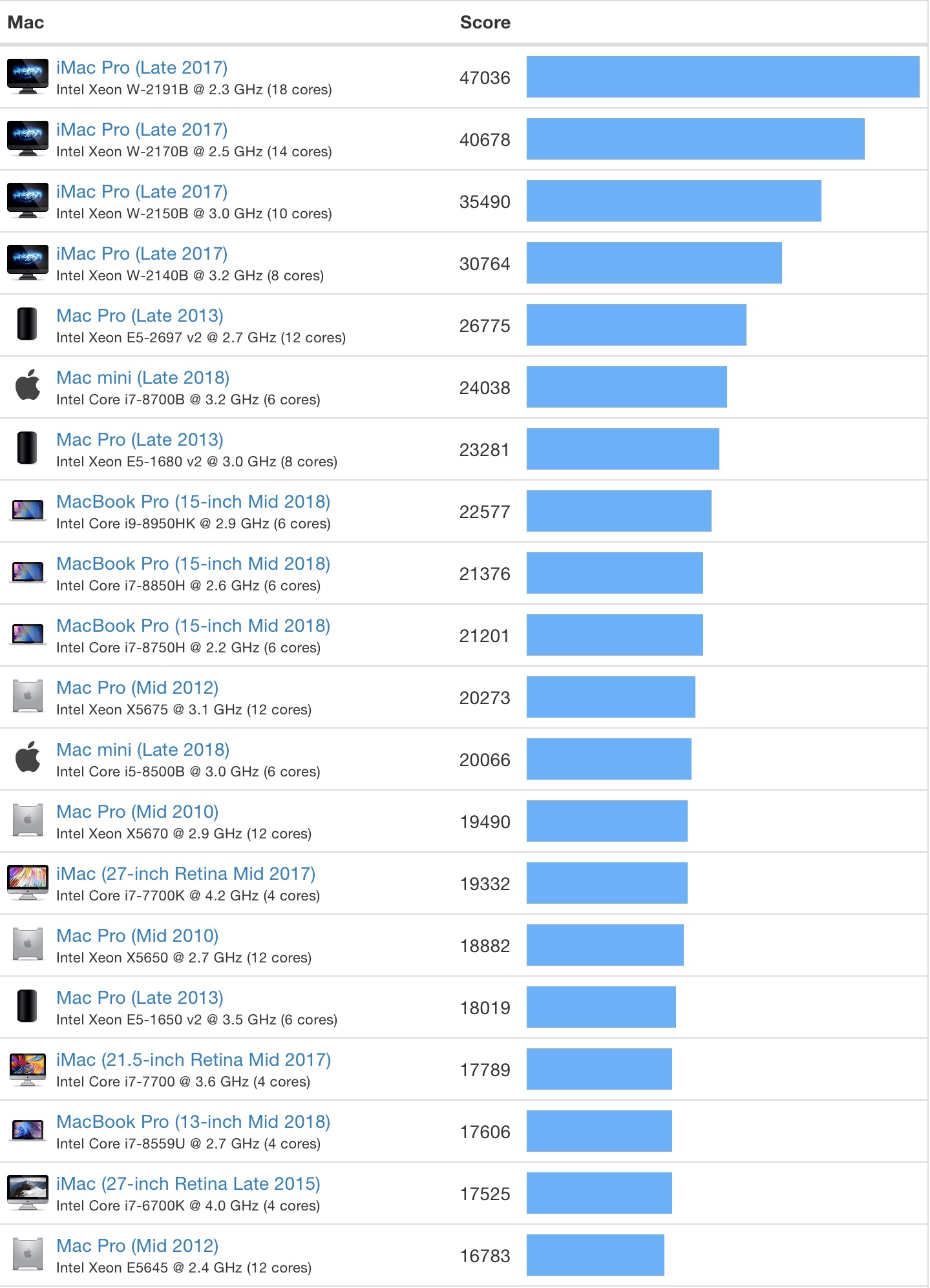
You can find the full results for all models here. Geekbench reflects everyday computer use reasonably well, but it doesn't fully show how the hardware will perform under a heavy, sustained load.
Throttling Throttling means limiting speed, in this case the processor's, usually because the temperature is too high. This is why laptops don't work well for jobs that require long periods under heavy load and slow down considerably once they get hot.
Some tests say the new Mac minis don't throttle at all. Other reviews say the opposite, even when they're testing the same processors. Where does this discrepancy come from?
It's a matter of definition. It simply depends on what you call throttling. If it means dropping below the processor's base speed, the Mac mini doesn't have this problem. Even the fastest processor, the 3.2 GHz i7, never drops below 3.2 GHz under the heaviest sustained load. But the same processor in a large computer with better cooling could apparently run at a slightly higher clock speed and keep using some of its Turbo Boost. That's why the reviews disagree. In the worst case, the i7 still runs at its base clock of 3.2 GHz. Some people call that throttling, while others say there is none.
RAM
The motherboard has two slots for 2666 MHz DDR4 SO-DIMM memory, meaning the smaller modules used in laptops rather than the large ones used in PCs. The standard configuration has 8 GB (2x4), while the maximum is 64 GB (2x32).
Apple's RAM upgrade prices are astronomical, so the most economical choice is definitely to get 8 GB and upgrade it to 32 GB yourself or have a nearby service shop do it. Upgrading the RAM is much harder than it was in the 2012 Mac mini because you have to remove the motherboard, but it's still reasonably simple and slightly easier than replacing the hard drive in the 2014 Mini. The entire job, including putting the computer back together, shouldn't take more than 10 minutes even if you haven't done it before. There are lots of videos online showing how to replace the RAM. You'll need security Torx tools in sizes 5, 6, and 10.
https://youtu.be/i1gFhTuFjHEApple charges an absurd 2880 zł to upgrade to 32 GB of RAM, while this Crucial memory costs a little over 1000 zł. The difference is much smaller with 16 GB (960 zł vs. around 500 zł), so Apple's upgrade isn't such a big deal in that case. For photos, however, 32 GB is really worth having. I've personally used 16 GB for almost a decade. It was fine a long time ago, but today it's the absolute minimum.
64 GB is very (veeery) expensive whether you buy it from Apple (6720 zł) or elsewhere (over 1000 dollars). It's also hard to find those modules in stores. Fortunately, hardly anyone will need that much for photography, but it can absolutely be useful for video production or running virtual machines.
People often ask whether upgrading the RAM themselves will void the warranty. The Mac mini isn't sealed, but Apple recommends having an authorized service provider install additional RAM. So in theory you can replace the RAM yourself. Otherwise, Apple wouldn't provide a recommendation, only a requirement to have it replaced by a service provider or a statement that adding RAM is impossible. There is no official information about this in Poland, though. The more relevant question may be whether you need to reinstall the factory RAM before sending the computer in for a possible warranty claim.
In California, for example, the situation is simple. The law says that because the RAM is accessible and the computer has slots for it, you can replace the memory yourself without losing the warranty. You'll only lose it if you somehow damage the computer while replacing the memory. Either way, you do it at your own risk.
Storage
The SSD is soldered to the motherboard, so you need to think your purchase through carefully. Even if it weren't soldered, you probably couldn't replace it yourself because of the T2 chip that controls the drive. Upgrades to larger capacities are extremely expensive. I list them below, along with the write speeds each drive reaches, collected from various reviews by @tapbot_paul. SSD write speed depends on capacity, so smaller drives will always be slower.
- 128 GB - around 600 MB/s
- 256 GB - around 1.3 GB/s (960 zł upgrade)
- 512 GB - around 1.9 GB/s (1920 zł upgrade)
- 1 TB - around 2.6 GB/s (3840 zł upgrade)
- 2 TB - over 2.6 GB/s (7680 zł upgrade)
Read speed, which is what matters most, is the same in every case: around 2.7 GB/s. For comparison, decent HDDs reach around 150 MB/s, while popular 2.5-inch USB HDDs manage around 70 MB/s.
From an economic point of view, it makes the most sense to get a computer with a drive large enough for the operating system, applications, and basic data, with a few dozen gigabytes left free so the drive doesn't slow down and has room for the swap file. I think many people can manage that even with a 128 GB drive, and almost everyone can with 256 GB. Thanks to Thunderbolt, everything else, including photos, can live on an external drive. That can even mean the fastest SSDs, with transfer speeds over 2000 MB/s, or up to 1000 MB/s over USB 3.1 Gen 2.
To get 2 TB at a similar speed to the original drive Apple would solder into the Mac mini, meaning over 2000 MB/s, you need to spend around 2300 zł on an NVMe SSD such as the very popular Samsung 970 Evo. Then you need an M.2 NVMe-to-Thunderbolt 3 enclosure that can make use of its speed. Unfortunately, such an enclosure will be very expensive. But even if you spend around 1400 zł on it, which is what the NetStor NA611TB3 costs, the enclosure and drive together will cost at most 3700 zł, and you can add a second drive to that enclosure in the future. That's expensive, but still half the extortionate amount Apple charges. The company's SSD pricing is absurd. Wojtek Pietrusiewicz wrote an entire article about it.
Almost everyone will be fine with much slower SSDs that are still very fast at around 500/500 MB/s and can offer a very good performance-to-price ratio. There are plenty of ways to expand storage. You can build a RAID from hard drives for decent transfer speeds or use a Thunderbolt NAS with hard drives and an SSD cache. You can do what I did and use an SSD connected over USB 3.1 Gen 2 for fast, portable storage. Someone who wants dizzying speeds can use Thunderbolt 3. And if speed isn't necessary because the drive will only hold a data archive, for example, a cheap hard drive will do. In that case, the computer's SSD probably needs enough room for the data you're actively working on, since working with files stored on a slow hard drive usually wastes the computer's performance.
Graphics card
Now we get to the new Mac mini's biggest weakness. A graphics card is almost irrelevant for photography, but a reasonably fast one would make the computer more versatile and better suited to things like editing videos with color grading, various transitions, titles, and so on. On the other hand, there's a good chance the Mac mini's case wouldn't have enough room to cool the processor as effectively as it does now.
Either way, every model gets nothing more than a poor Intel UHD 630, which really doesn't belong alongside components this good.
eGPU Thunderbolt 3 comes to the rescue. It lets you connect a standard graphics card after putting it in a special enclosure. That enclosure with a graphics card, or eGPU, will be larger than the Mac mini itself, several times larger in fact.
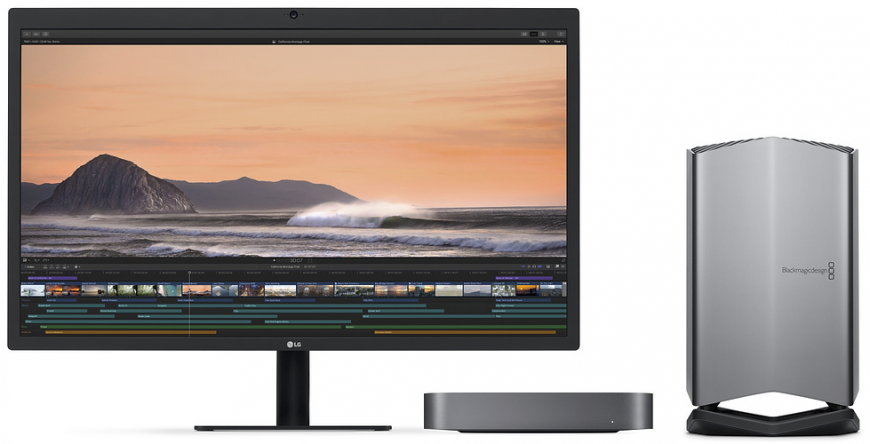
The enclosure itself is also quite expensive. You can find something for 200 dollars, but most decent models start at $300. In Poland, it will be difficult to find anything worth considering for less than 1300 zł, and the selection is limited.
Upgrading the graphics card in a Mac mini therefore costs much more than upgrading a regular PC. And remember, so far we're only talking about the enclosure. You still need to buy the graphics card itself.
Apple promotes the Blackmagic eGPU with a built-in graphics card, shown in the photo above. Its prices are absurdly high compared with the competition, and you can't upgrade to a better graphics card later. The Blackmagic eGPU is incredibly quiet compared with its competitors, but even as someone obsessed with silence, I'd have a hard time justifying twice the price.
You can compare the basic details of various eGPUs here, but you absolutely need to read more detailed reviews before buying. Those reviews are also linked in the table.
T2 chip
The T2 is one of the better things to happen to MacBooks, and most importantly, the new Mini got it too. It has much less to do in a Mac mini than in a MacBook, though. In the laptops, it also handles the fingerprint reader, prevents anyone from breaking into the camera and microphone, and processes the camera image and microphone audio for better results than the same hardware would produce without T2 control. None of those things are built into the Mac mini. But the T2 has other advantages that this computer also uses.
Performance If you don't have a very good graphics card, the T2 provides an enormous performance boost with the H.264 and H.265 codecs because it has hardware support for them. It's discussed here. When rendering a video in Final Cut, the T2 can do the work instead of the processor or graphics card. I'll add that both YouTube and Vimeo now support H.265, while H.264 seems to be everywhere. FFmpeg also supports the T2, so HandBrake, among other applications, benefits from it. The T2 won't improve the editing process itself in an application such as Final Cut, but it will improve rendering, and by a lot.
In the case of the 2018 MacBook Pro, which has a much better graphics card than the Mac mini, the H.264 Blu-ray ripping results are as follows: CPU: 40 fps | Intel GPU: 70 fps | T2: 110-120 fps.
With H.265 UHD, the differences are even greater. At good quality, the results are: CPU: 7 fps | Intel GPU: 15 fps | T2: 40-45 fps.Security The T2 improves security. Among other things, it encrypts data even when FileVault is disabled, so the main processor doesn't have to do it.
Disadvantages One side effect of the increased security is that you can't replace some computer components. In laptops with Touch ID, for example, you can't replace it yourself. The same applies to the drives in the latest computers, which is why you couldn't replace the Mini's SSD yourself even if it weren't soldered in place. The T2 doesn't prevent you from replacing the RAM in a Mac mini yourself.
Which configuration is right for whom
All configurations are available here. After choosing a model, you can change the processor, drive, RAM, and network adapter.On a budget - i3 | 128 GB
I think even the base Mac mini model for 3999 zł will be fine for a lot of people. And I don't mean only for browsing the web, making presentations, and occasional Photoshop work. It can even handle advanced work on fairly large files in PS. This model is still fast. Even in multi-core tasks, its performance is close to a late-2016 MacBook Pro with a 2.9 GHz i7, while its single-core performance is only slightly below a 2017 5K iMac with a 3.4 GHz i5.
But you absolutely need to add RAM to this Mini, preferably 32 GB. An external drive is also mandatory because the built-in 128 GB drive won't have room for working files. Remember that you should never fill an SSD to the brim.
If you add the memory yourself, a computer with an i3, 128 GB SSD, and 32 GB of RAM costs around 5000 zł, plus around 400 zł for a 512 GB SSD connected over USB, or a larger and more expensive capacity depending on your needs.
The versatile option - i5 | 256 GB
In my opinion, this configuration is highly debatable. Paying extra for the i5 makes the most sense for people whose work depends more on batch processing photos in Lightroom or Capture One than on editing individual photos in Photoshop. LR uses the additional cores much more effectively than PS. This Mini will also be much better for video work. In multi-core tasks, it beats the 4.2 GHz 2017 5K iMac, though the Mini will obviously be worse where the graphics card matters a lot.
When you upgrade to the i5, you automatically get at least a 256 GB drive, which is probably why it costs almost 1500 zł more. That creates a dilemma: keep that capacity or pay another 960 zł for 512 GB so the internal drive can hold more of the projects you're currently working on. Everyone has to decide for themselves how much space they need.
Of course, you can also connect an external drive. That creates another dilemma. If the data will be on an external drive anyway, why buy the i5 Mini when an i7 Mini with a smaller internal SSD costs the same?
Back to the i5: the RAM must be upgraded, so this configuration with an i5, 256 GB SSD, and 32 GB of RAM installed yourself will cost around 6500 zł, or around 7460 zł with a 512 GB SSD.
The high-performance option - i7
I think people who genuinely need the i7 are more likely to work with video than photos alone. The extra power may also help with batch processing when heavy noise reduction, exporting thousands of photos each week, and similar jobs are involved. I also consider the i7 a very good option from an economic point of view. If I knew all my data would live on an external drive and the internal one would hold only the system and applications, I'd rather get an i7 with 128 GB than an i5 with 256 GB for the same money. I discuss the i7 Mini in more detail below anyway, so let's move on to the next section.
What I bought and why
I chose the Mac mini with the fastest processor, the i7. If I had been trying to save money and hadn't planned to livestream my screen while recording 4K at the same time, all while working in Photoshop at 16 bits per channel, the i5 would have been easily enough for me. I could have chosen it even with all that, but I'd still rather give up a larger drive than the i7. I simply want something as future-proof as possible that will also perform as well as possible in Final Cut and ScreenFlow, which I always use to record in 4K.
I didn't upgrade the memory through Apple because I consider what the company does with RAM prices unethical, to say the least. So I got the Mac mini with 8 GB of RAM and bought 32 GB of Crucial 2666 MHz DDR4 SO-DIMM memory from a regular computer store.
I chose a 256 GB drive built into the Mac, but I'm almost certain that even a measly 128 GB would have been completely enough for me. Almost everything other than the system and applications will be on an additional SSD anyway, so the system drive should still have plenty of space for the swap file and enough free room to keep it from slowing down. At the same time, if someone bought a laptop with 128 GB, I'd say they'd lost their mind, because having to connect external drives every time defeats the point of mobility. That's why my laptop has a 512 GB drive. I have to connect an external drive to the Mini anyway, regardless of its built-in capacity, unless I got the built-in 2 TB option, but at Apple's prices I'd feel robbed. So it makes no difference to me whether I have 40 GB or 168 GB free. With a larger drive, I'd obviously find plenty of ways to fill it, such as keeping Dropbox and my iCloud library on it instead of a USB drive.
At first, I planned to buy an incredibly fast 2 TB NVMe SSD for the Mac mini, such as a Samsung 970 Evo, connected through a Thunderbolt 3 enclosure. But I was convinced that this would be overkill and I'd never use those speeds in my work. In the end, I bought a 2 TB Samsung 860 Evo M.2 rated at a little over 500/500 MB/s. It cost me around 1400 zł including shipping, customs, taxes, and the M.2-to-USB 3.1 Gen 2 enclosure that holds the drive. I had to order it from the US because these parts were very expensive in Thailand, though this isn't a problem in Poland. Buying 1 TB drives is more cost-effective, but I wanted a single 2 TB drive so I could keep all my data in one place.
I didn't pay extra for the 10 GbE network adapter because if I ever need a connection faster than the standard 1 GbE, it will only be after I buy a NAS with that kind of network adapter and Thunderbolt. It will make more sense to use 40 Gb/s Thunderbolt rather than slower Ethernet, while the internet connection can use the NAS's fast network adapter.
I also got AppleCare, which extends the warranty to three years, but I don't know whether I would have chosen it if I lived in Poland. In the EU, you already have two years to make a consumer claim, which isn't the same as a warranty. Still, having a three-year warranty is better than not having one, especially because AppleCare for the Mac mini is much cheaper than for the other models.
So my final configuration is a Mac mini with an i7, 32 GB of RAM, a 256 GB SSD plus a 2 TB SSD, and 1 GbE. The whole setup cost me just under 8000 zł, but that's because I bought the computer where I live, in Bangkok. I ordered the SSD from the US because that Samsung was terribly expensive in Thailand.
Life has also taught me that I recover an abnormally large amount of money when I sell Apple hardware, especially when I sell it in Poland. That's why I'm convinced this is an excellent purchase financially, even though a PC with the same performance would be cheaper. For a computer this good with macOS, I consider it a very good deal. To be honest, I was starting to worry that Apple would never release a desktop computer for me. I'd rather avoid building another Hackintosh, especially since it couldn't be made equally small.
If I were putting together the same Mac mini in Poland, it would cost around 1500 zł more, but I'd recover more in taxes, so the final cost would probably be the same or even lower. Alternatively, I'd give up the 256 GB drive in favor of 128 GB, since I'd have no more than 80 GB used on it anyway.
Summary
The Mac mini isn't cheap, but if you upgrade it yourself, it offers a much better performance-to-price ratio than any other Apple computer. When you consider how little value these computers lose over time, the purchase price looks even more reasonable. If the computer's size doesn't matter to someone and Windows is acceptable, the same money will buy them a faster computer, or the same performance for less. That's especially true if the graphics card will also be upgraded.
The Mini is an excellent option for people who want macOS. Two years ago, I seriously considered returning to Windows because I'd almost stopped believing that a Mini like this would ever appear. I found that prospect absolutely terrifying because I know the differences in areas such as color management. The only alternative I could see in the end was a Hackintosh, also for financial reasons because I wouldn't have to buy all my applications again. I'm very glad I no longer have to consider that because the Mac mini is the computer I'd been waiting for. Everyone is now wondering what the upcoming Mac Pro will be like when the Mac mini already matches the iMac Pro in many situations. My guess is that the Pro will rely heavily on the next generation of the T2, but we'll have to wait and see. It won't affect me anyway because the Mini meets all my requirements. In the worst case, I'll have to add a graphics card, but there's a good chance I won't need one, and certainly not because of Photoshop.