Using an iPad as a second computer display—finally with hardware acceleration
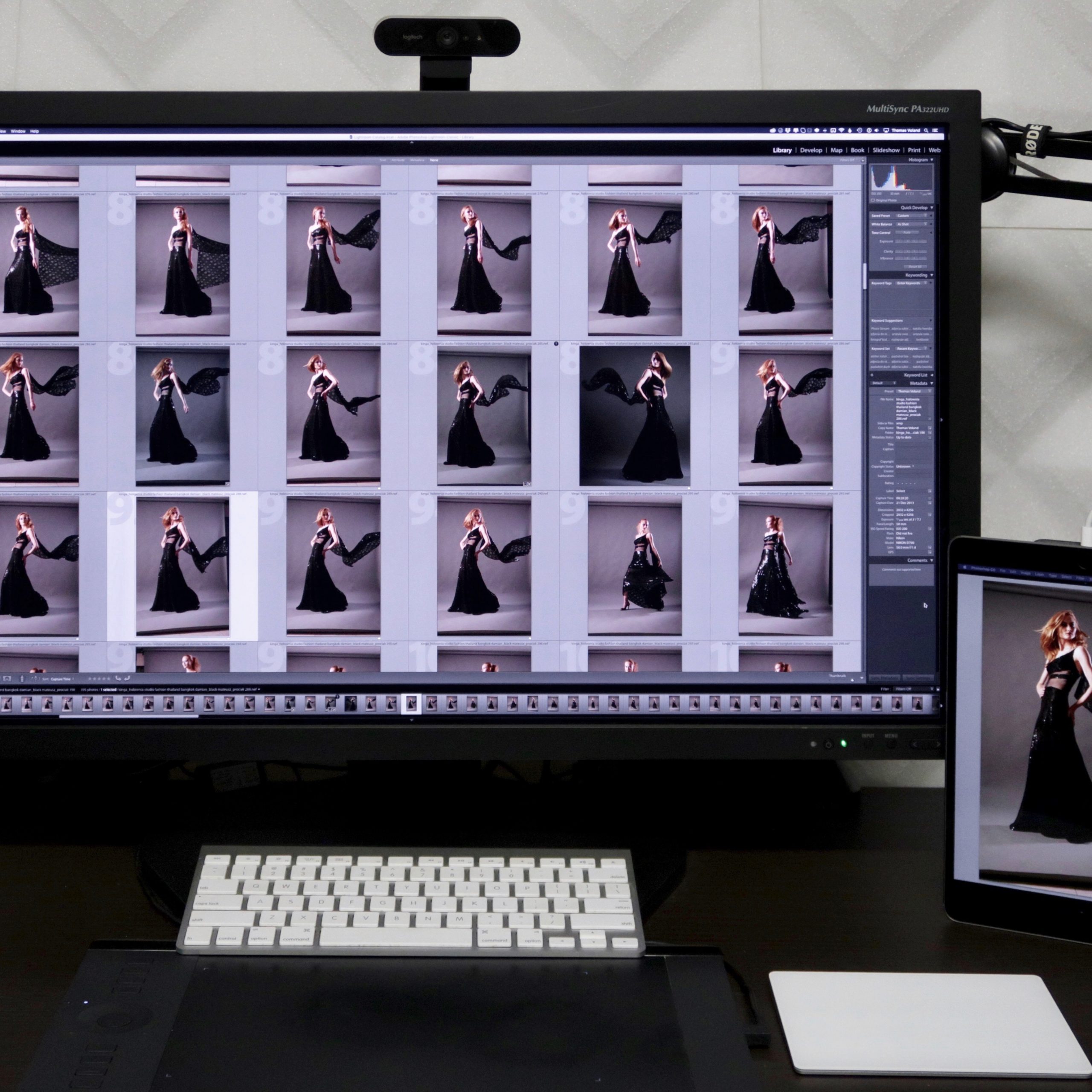
After switching to a desktop computer, I no longer had a second screen. I don’t need one for everyday work anymore, but occasionally I run into situations where it’s essential. Previously I could simply open my laptop; now I would have to buy another monitor. I knew I wouldn’t do that, because it would need a very high resolution to be comfortable beside a UHD display. I decided that an iPad screen would be enough for those extra windows. The apps that turned it into a monitor worked poorly. Only Astropad was excellent, but that software was designed for working remotely in Photoshop and mirrored the primary display instead of extending it. In other words, it was nothing like what I needed at the time.
A hardware solution finally appeared after I’d been waiting for it since the first announcement—which means a very long time. It was Luna Display from the Astropad team. I was ready to buy it: for $79, you received a USB-C or Mini DisplayPort dongle, and the iPad was supposed to work wirelessly as smoothly as a normal monitor. As far as I know, they really delivered. The problem was that when I tried to buy one, I discovered that they didn’t ship to Thailand… I planned to order it in Poland and ask someone to bring it to me, but that may no longer be necessary. Another option has just appeared. In theory it’s cheaper, although in practice it may prove more expensive. More on that in a moment.
Hardware-accelerated Duet Display
Duet Display can now be used as a second screen for a Mac, and it finally works almost like a native monitor. The image wasn’t smooth before, but macOS Mojave 10.14.2 introduced full hardware acceleration. The difference is almost impossible to describe. Previously even the cursor stuttered, and playing video clearly didn’t work properly. Now it’s simply smooth.

You can also turn off the monitor and display the image only on the iPad. For this to work, however, the system first has to launch the Duet Display app, so you won’t see the operating system’s login screen. You don’t need the latest iPad Pro to benefit from the improved performance; older iPads and non-Pro models work as well. It’s also supposed to become smooth and hardware-accelerated when connected to Windows, but not yet—they’re working on it.
https://twitter.com/duetdisplay/status/1070417328444268544Image quality
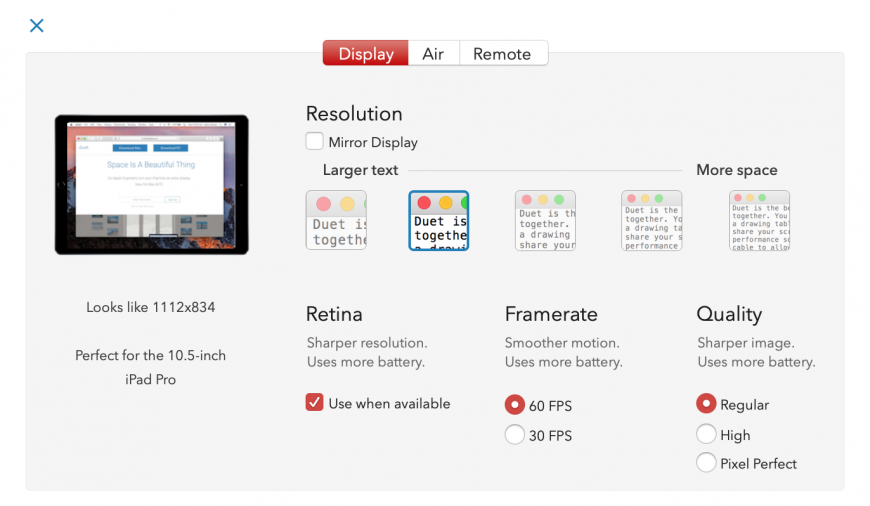
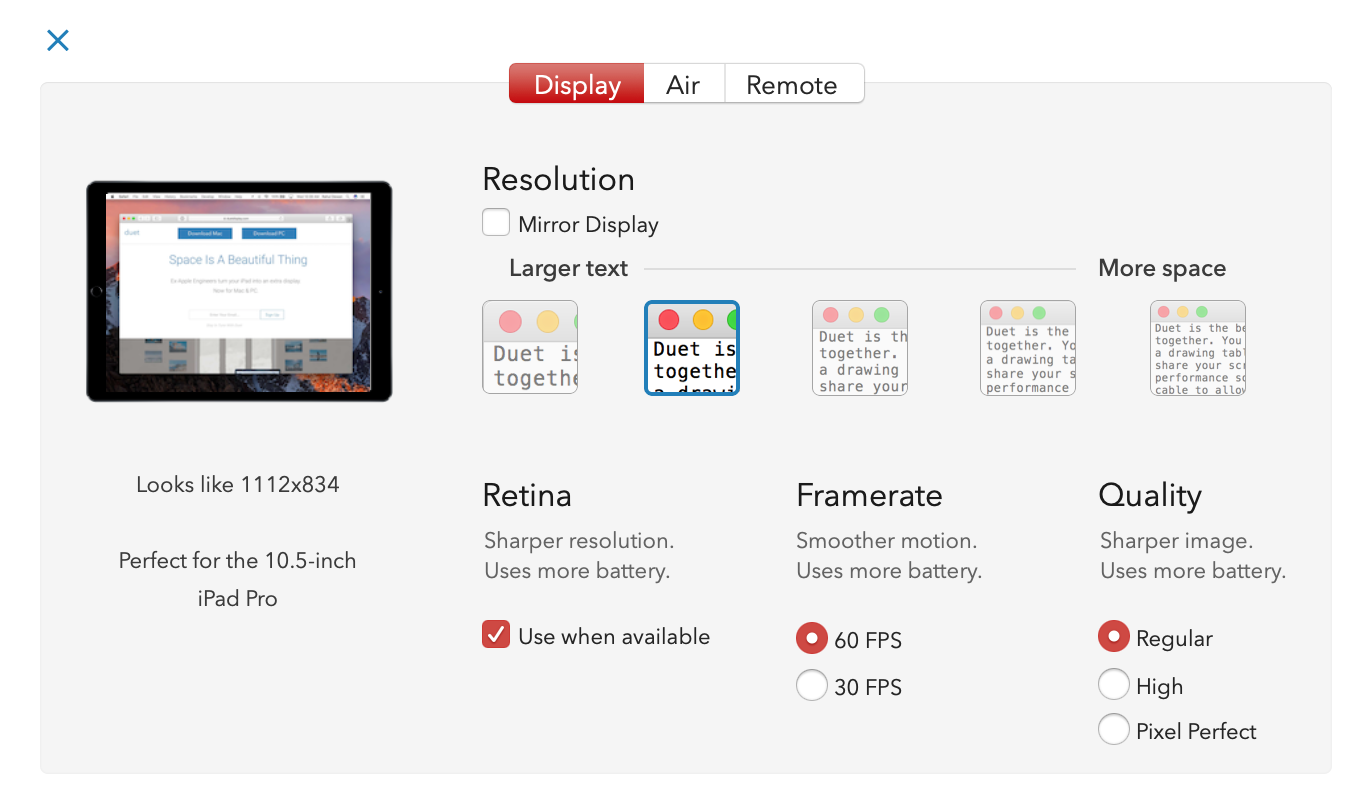
There isn’t much to say: it’s excellent. It doesn’t look like a low-bitrate screencast; the image genuinely resembles a proper high-PPI monitor. You just need to make sure that the Retina option is enabled. There are also three image-quality settings: Regular, High, and the best one, Pixel Perfect, which is available only in the paid upgrade. I can’t see any difference between them—even the lowest setting looks excellent. There may be differences while drawing or displaying motion that I haven’t noticed. If there is any latency, it’s small enough that when I play a movie on the Duet Display screen, I can’t see the movement of the actors’ lips falling behind the audio.
 The price—not necessarily as cheap as it seems
Duet was on sale at the time, at half price—just under 50 PLN. The price of the app covered only its basic functionality, though. If someone actually wanted to use Duet Display like Luna Display, drawing with a stylus in Photoshop without a cable running from the iPad to the computer, they needed a subscription. The basic version lets you control the computer by touching the iPad screen, but a wireless connection requires the Air version at just under 90 PLN per year. Getting every Luna Display feature requires the Pro version, at almost 120 PLN per year. The stylus then detects pressure and tilt, and according to the manufacturer everything should generally work better and offer even higher image quality—although I’ve already explained what the quality is like for me.
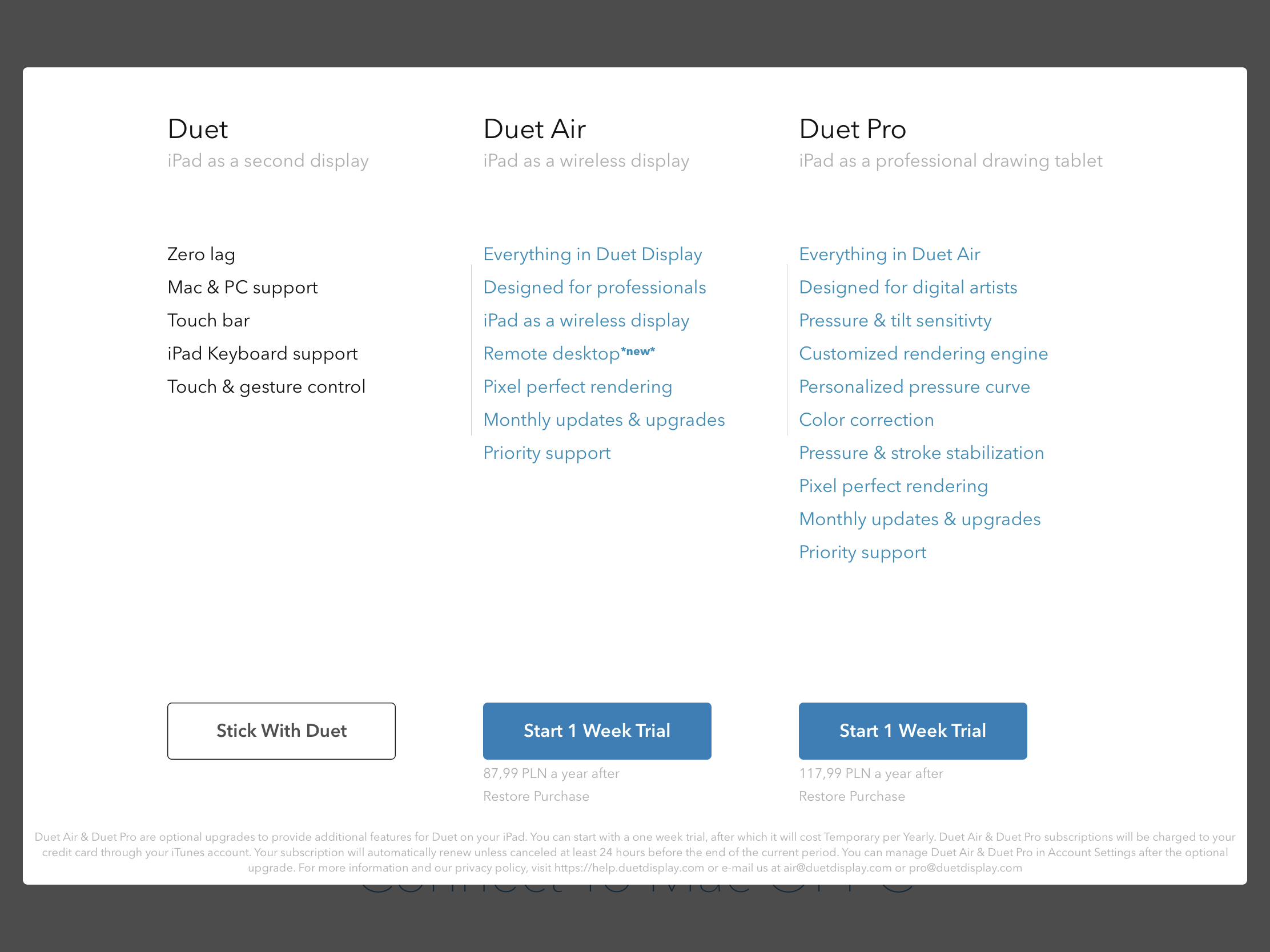
The subscription combined with Duet Display’s purchase price means that using it for more than a year costs almost as much as Luna Display, and eventually more. Luna, however, requires a reasonably good Wi-Fi network. Its dongle doesn’t connect directly to the iPad or create a network of its own; it uses an existing one. Connecting in a hotel may be difficult, and on a plane even more so. In that situation, however, creating a hotspot with a phone should make it work smoothly. Duet Display can instead be connected with a cable, which solves the problem.
Limitations of Duet Display and similar apps
- I’ve already mentioned that the operating system login window isn’t visible. It isn’t visible with Luna Display either.
- You can’t use a Wacom tablet on the iPad while the iPad is acting as an additional monitor. The iPad doesn’t appear as a separate display in the work-area mapping options, and pressing the Wacom button that switches monitors doesn’t help. If the iPad is the only screen connected to the computer, however, it works without a problem.
- If I hold Option while opening the resolution selection, the list contains 20 options, but only some of them work. Choosing the iPad 10.5-inch model’s native 2224 × 1668 resolution, for example, still produces 2048 × 1536.
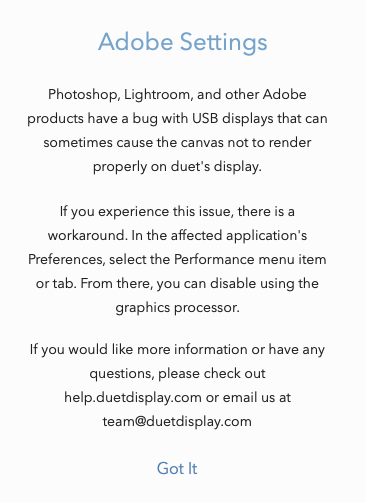
- Displays connected over USB can cause a problem in Adobe applications that requires hardware acceleration to be disabled. Photoshop then becomes so painfully slow that almost nobody would choose to work that way. Fortunately, I haven’t experienced the problem, at least not in Lightroom or Photoshop, but Duet Display warns about such cases:
Alternatives
I don’t know whether I’ll buy Luna or the Air or Pro version of Duet Display. For now, I’m using the seven-day trial with every feature, and I don’t think I need the subscription extras. I’m unlikely to work in Photoshop and Lightroom directly through the iPad. I’ll therefore probably stay with the most basic version of Duet for the immediate future and perhaps consider the next step later. Comparisons between Luna and the new Duet will probably appear soon, so they may reveal further differences. I suspect those will mainly matter to people drawing on an iPad rather than those using it as a second monitor.
Apart from Luna, there were no alternatives at the time, although Duet considered itself better than Luna:
https://twitter.com/duetdisplay/status/1070453312678445057There used to be Air Display 3, but unfortunately it hadn’t received an update in two years, and the last time I checked it didn’t work for me at all. This wasn’t only because High Sierra broke all apps of this kind; Air Display 3 still didn’t work after I moved to Mojave. I wonder whether its developers will create a fourth version with hardware acceleration, but nothing suggests that they will. Besides, after they neglected the previous version for two years, I would find it difficult to trust them to develop future editions regularly. Other apps can turn an iPad into a second screen, but at the time none had hardware acceleration, so none was a real alternative.