Photoshop for iPad: Is It Any Good for Photo Retouching?

We had known for a year that a full version of Photoshop was coming to the iPad, but it was only released yesterday. As announced, only some features are available at first, while the rest will be added until it reaches the full functionality of desktop PS. Let’s start with how the whole thing works. Photoshop performs very well on the 10.5-inch iPad Pro—the app does not stutter and has been stable for me, so it should only be better on newer models. Zooming works brilliantly, and files open quickly too. Based on my experience with Affinity Photo, unless Adobe has screwed something up, PS should run quite well even on the base-model iPad. There is a one-month trial, but the CC Photography Plan includes it alongside Lightroom and desktop Photoshop. In other words, for existing PS CC users, you could say that the iPad version is “free.”
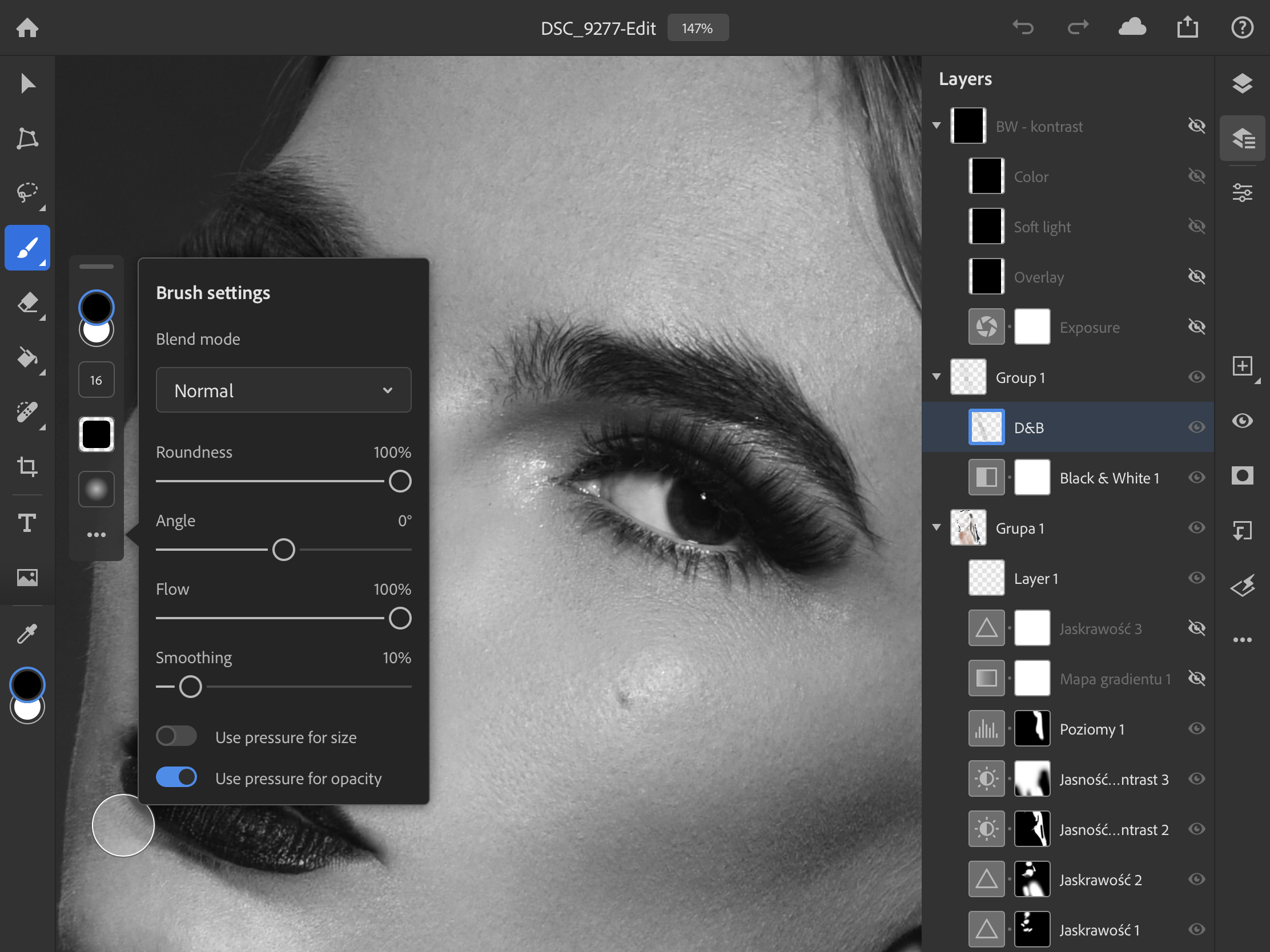
Pen pressure can control opacity, which will obviously be used constantly in retouching and which Affinity Photo does not seem to understand, stubbornly relying on flow instead of opacity. The worse part is that, for now, I cannot disable pressure control over the brush-tip size—I have the option, but it is greyed out and enabled even though its icon suggests otherwise.
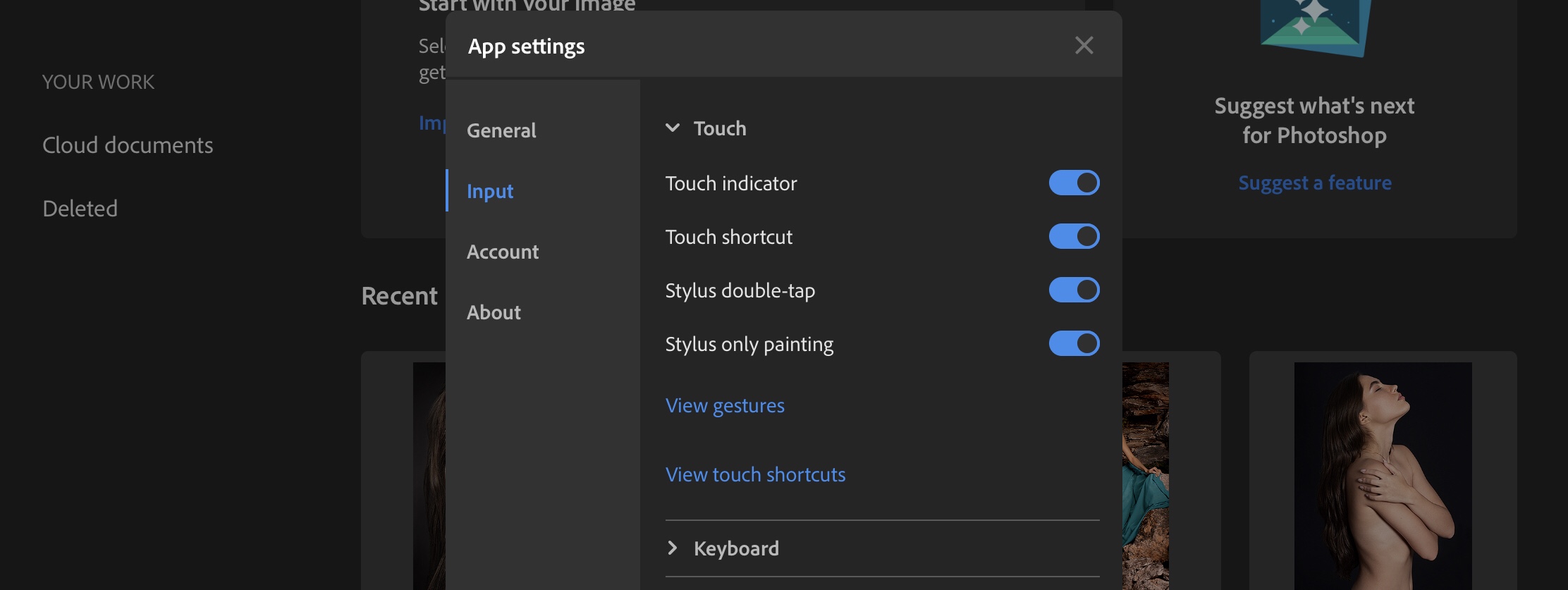
Before you start working, it is also worth changing the settings so that you can draw only with the stylus. Otherwise, you can accidentally scribble on the photo if you move one finger across it instead of two.
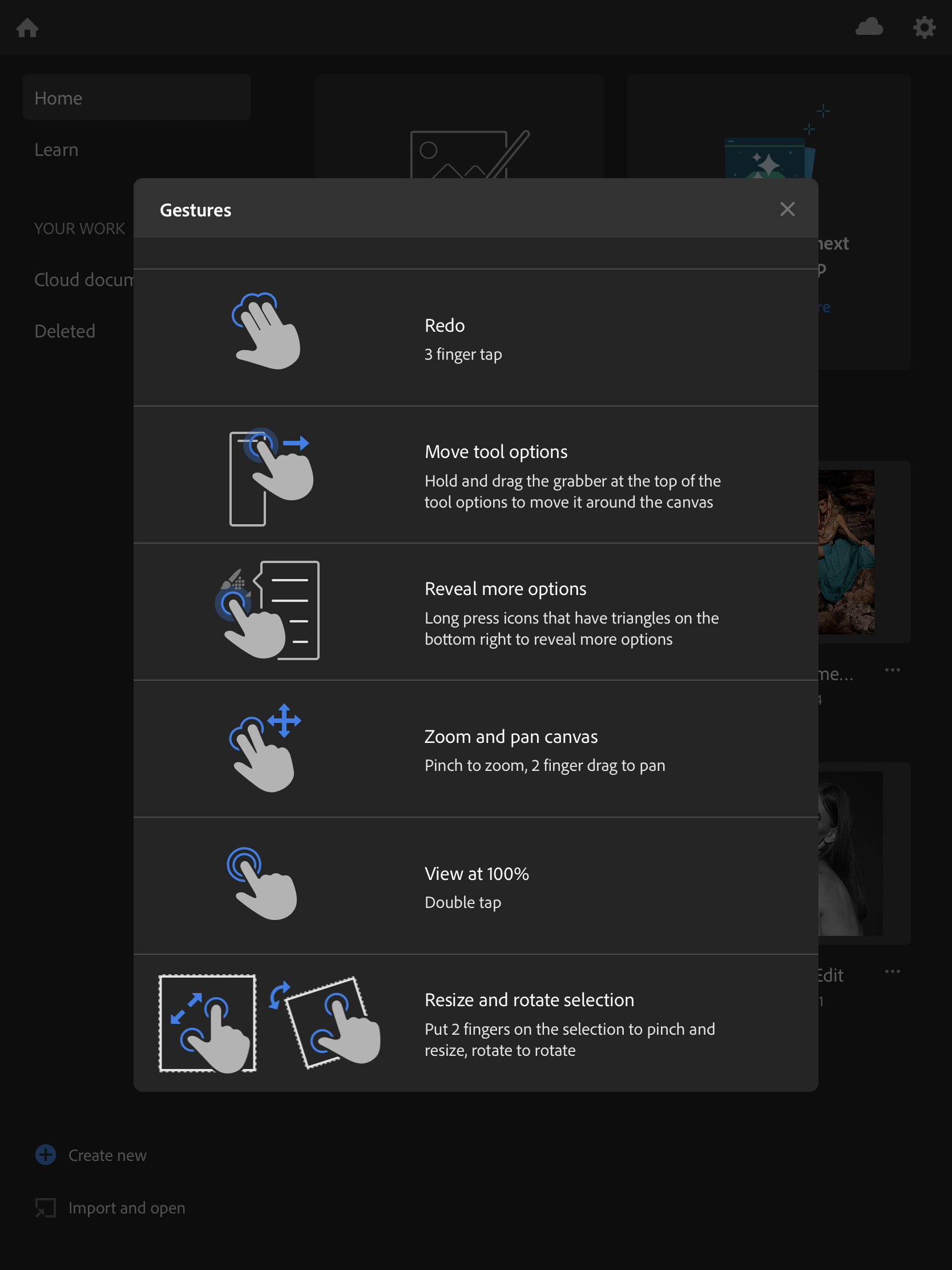
You use two fingers to pan and zoom, and the controls are very comfortable. Gestures are also supported:
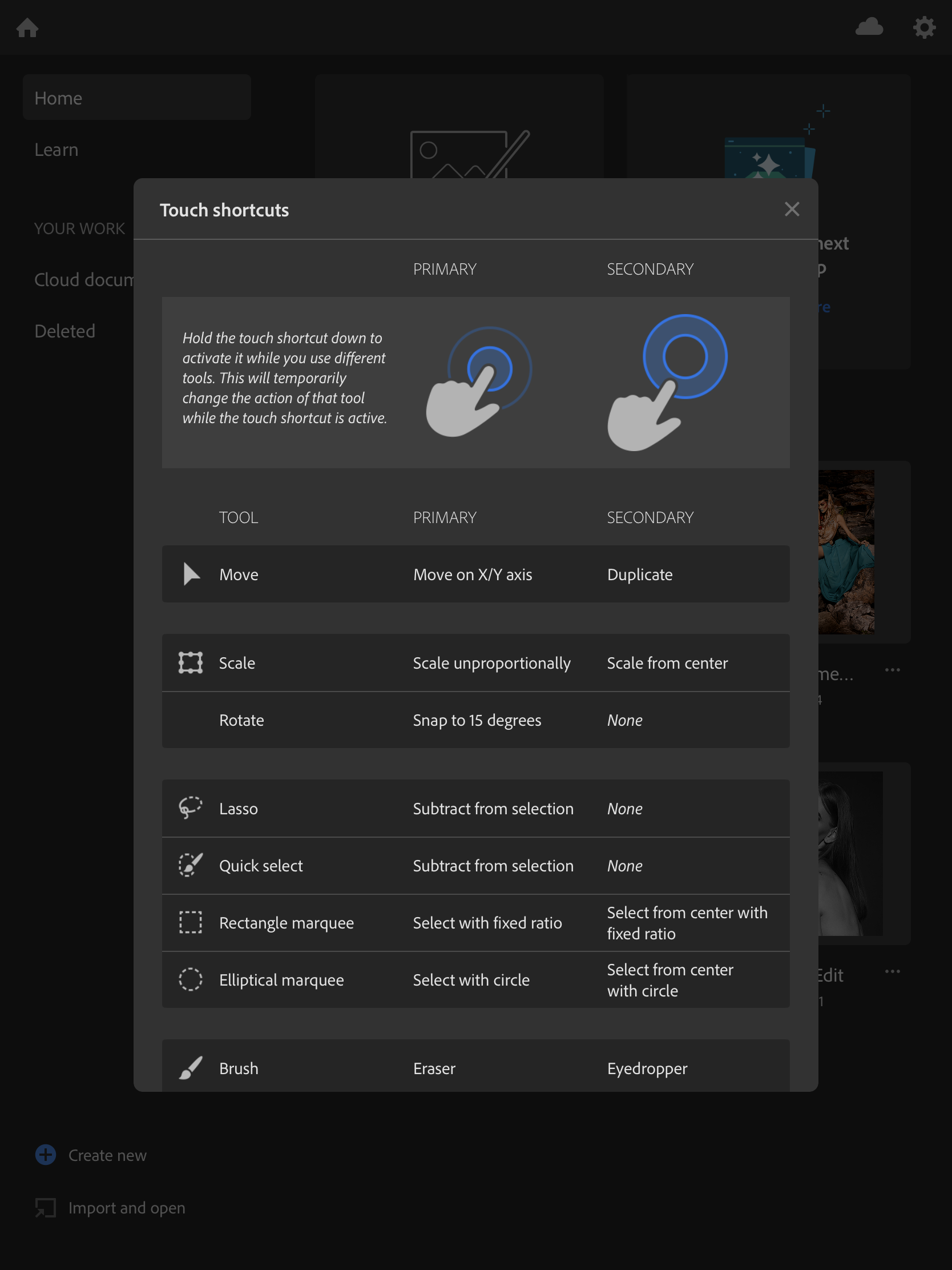
There is also a virtual button that you can move to a convenient place on the screen. Pressing it changes how various tools work, just as Adobe demonstrated when it announced Photoshop last year:
Opening photos in Photoshop for iPad
Now for the specifics. Since iPadOS handles file management sensibly, the files do not have to be stored on the iPad. Directly in Photoshop, I use the import option to open a file straight from my NAS. Opening it without importing is not possible at all because it has to be converted into a web document, namely PSDC. The document being edited is therefore stored in Adobe Cloud. That is why opening a file for the first time takes much longer than opening it again—it has to be converted and saved to the cloud. The photo on the NAS remains unchanged; the edited version goes only to the cloud unless you later download it yourself to your computer or NAS. During my tests, downloading took dozens of times longer than the internet connection speed would suggest, and along the way the file was converted from PSDC to PSD. Given that most people in this industry use the Photography Plan, the 20 GB of cloud storage included with its basic option will be gone in no time.
The first problems appeared as early as the photo-opening stage because, for now, RAW files from my cameras are not supported. That applies to both my old Nikon D700 and the D810. My only option was to open a JPEG or PSD. All JPEGs work, of course, but PSD support varies, even with files saved with maximum compatibility.
Basic features
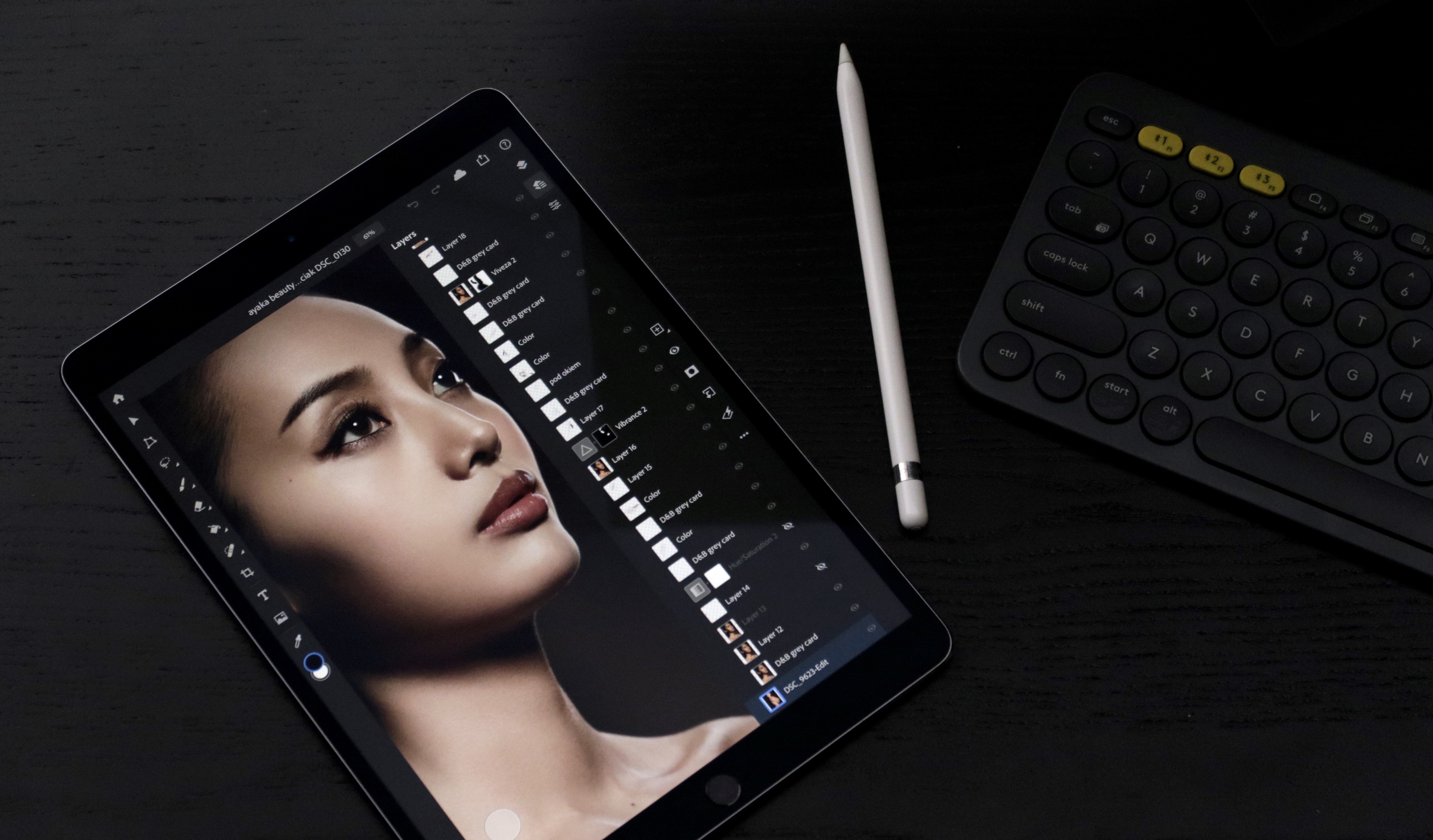
The absolute basics are there. We have regular and adjustment layers as well as various blending modes, so, for example, you can do dodge & burn. Tools such as the brush, eraser, lasso, and so on are there too, but you can see all of that at first glance. The problem is that what you see is essentially all there is—almost no filters are hidden away, and you cannot do frequency separation. You have to painstakingly set up every layer by hand because Actions are not supported at all. Even if they were, the absence of so many options would mean that only the simplest ones would work. That is why I suspect Actions will be one of the last features Adobe adds, which is a shame because efficient work is out of the question without them.
On top of that, the very important CMD + ALT + SHIFT + E shortcut, for example, does nothing. There is not even anything as intuitive as swiping on a layer—there is a sliding animation, but no delete option appears, nor does any other option.
Fortunately, Adobe did not botch one very important issue: if you open a 16-bit file, it remains 16-bit. It is not converted to 8-bit during import, so we work on lossless documents.
A controversial way to save photos
Adobe “chose” a very controversial option: after you select "Publish and export"—which, as its own description indicates, is intended in part for publishing on social media—the photo is not converted to sRGB.

What is more, conversion is currently impossible altogether, even at an earlier stage. I explained why this is a problem at length in my article about color management. Fortunately, the ICC profile is embedded in the file. I used quotation marks earlier because this feature is absent due to the inability to create anything other than 8-bit sRGB documents. However, the developers have said that they understand just how serious this problem is and that other options will be added in updates. Previously created documents with different parameters, such as a 16-bit Adobe RGB document, can be opened, so it is still good that they do not crash PS or get converted to sRGB during import.
Photoshop for iPad—summary
In its current form, Photoshop for iPad is not suitable for editing photos. It will be enough for preparing a graphic for a website, adding text to a photo, and so on, but you can forget about full retouching. Affinity Photo for iPad is currently far more capable than this version of Photoshop. If Adobe really adds all the features from the desktop version, the situation will be reversed, but judging by how much the company has done so far, I would not expect that to happen quickly. For now, I have no choice but to set the iPad version of Photoshop aside, and if I absolutely have to do something on a mobile device, it certainly will not be in this app.
I will not describe every change that appears in PS over the coming months on the blog, but I will probably mention every update that matters for photo editing on my Twitter, so you can follow me there: https://twitter.com/thomas_voland. If the iPad version really achieves the full capabilities of desktop Photoshop, the iPad will be close to becoming the cheapest computer for efficient photo retouching. That is why it matters so much that Adobe manages to do this someday.