Apple Mac: OS X Mountain Lion for Beginners
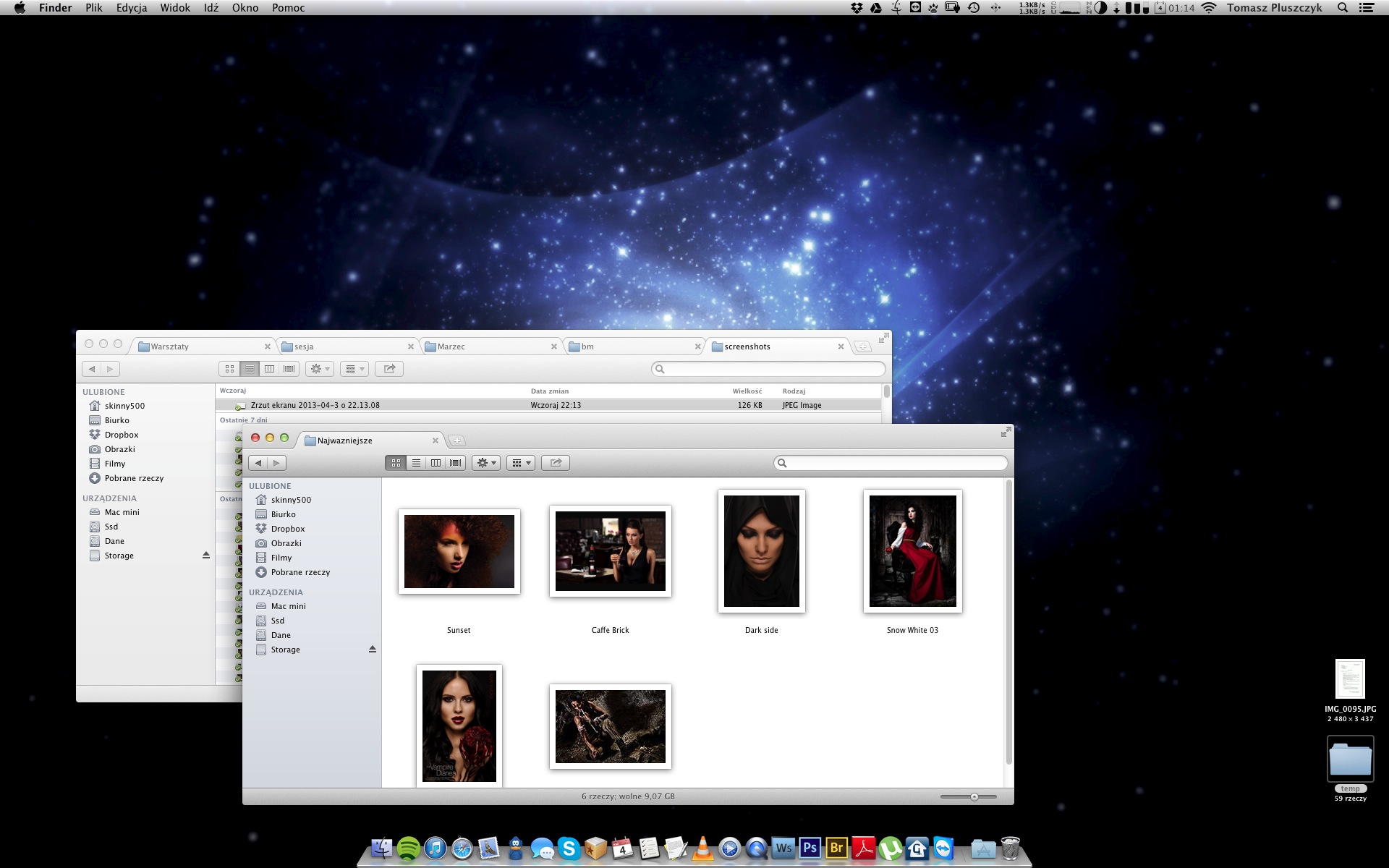
I have been using a Mac Mini. Many people who visit me ask, “what is that?”. To anyone familiar with Apple products, such a small computer is perfectly normal, but it turns out the average person usually has no idea how small a desktop computer can be (while retaining performance similar to a 15-kilogram box). It is an excellent machine for a photographer; it is easy to take to the studio—it weighs less than a laptop and takes up less space. It needs an external monitor, but for that kind of work you should have one anyway. I have already written about Apple computers and how to choose one in “Mac or PC? Macs for Photographers and Retouchers”. Today I will cover something just as important, perhaps even more important—the operating system Macs run. This will be very subjective, but there is no other way to write it.
Photography barely exists without computers today, so I think the subject is inseparable from photography. After all, you need something on which to develop and process those photos—for print or other publications. Apple computers themselves are not special to me; perhaps one day I could go back to hardware from another company. But there is something stopping me: Apple’s operating system, OS X. It is designed so that even people who know nothing about computers can use it without trouble (although some habits carried over from Windows can be misleading at first).
The biggest advantages of OS X are its aforementioned ease of use, improved security, good built-in applications, an excellent backup tool, a store of vetted applications, superb synchronization with the iPhone and iPad, a consistent interface across applications (configuration looks almost the same in nearly every one), Spotlight (instant access to data), Smart Folders, gesture control, multiple desktops, and very convenient migration between computers (you buy a new one and keep all the data from the old machine—you do not have to install or configure anything, and even the icon arrangement on the desktop will be identical).
As you can see in the screenshot above, the whole thing looks similar to Windows. Beyond the interface, however, the systems differ in many ways. OS X is written for only a few dozen hardware configurations rather than several hundred thousand. Among other things, this makes it very stable, and users do not have to care whether their graphics card, sound card, motherboard, and other drivers are current. If a new driver version comes out, it will be part of a system update. You unpack a new computer, turn it on, and do not have to worry about anything else. There is no need to configure dozens of system options just to make it work reasonably well. You do not have to download antivirus software, install video codecs, or install basic applications. The built-in ones are easy to use and good at the same time—you get applications for editing video and audio, managing email, a calendar, the ability to set reminders, and so on. If you need something more advanced, that is when you download additional third-party software. It works much like iOS, through the App Store application:
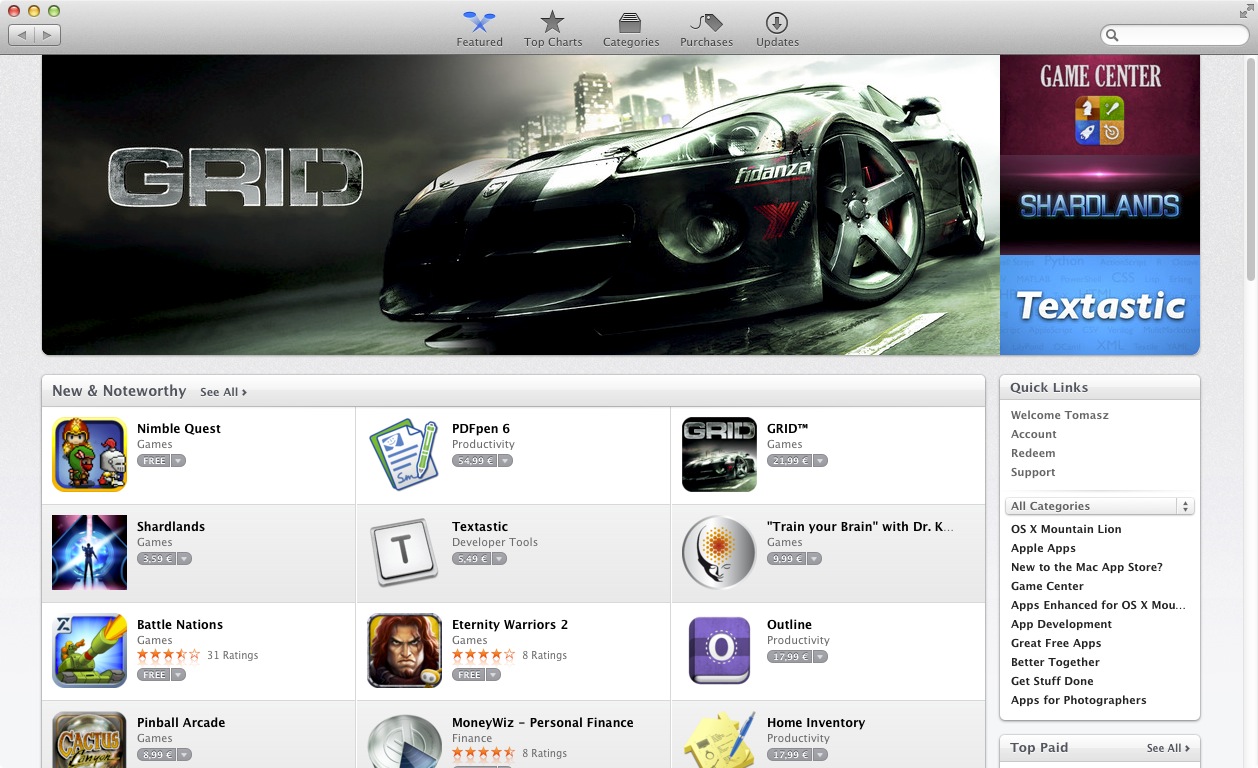
Before anything appears there, it is checked, so there is no risk of it being an application that crashes the computer at every opportunity or, worse, a virus. I have already written at length about viruses, so I will just repeat the key point:
You do not need to worry about viruses. People say there are none at all, but that is only a myth. Viruses obviously exist, yet very few Mac users have encountered them, and they are a far cry from those found on Windows. That is not just because the system is less popular, but also because of factors such as its much better file system and permissions management. Viruses on Macs have to ask for permission to install, and you must enter an administrator password before they can use that permission. There have been exceptions—few enough to count on one hand—that exploited some vulnerability, but those vulnerabilities are fixed through the updates mentioned above. That does not change the fact that some people use antivirus software, mainly to remove viruses from the hard drives and USB sticks of friends who use Microsoft software (such viruses cannot do anything on OS X; they can only harm those friends).
Applications
Besides installing applications from the App Store, you can also install them in the more old-fashioned way (not everything is available in the store). Are the same applications available as on Windows? A lot of software has an OS X version, and a lot has much better alternatives too, but not all of it. Highly specialized applications are often written only for Windows. Photoshop, Lightroom, Capture One, and just about anything else a photographer needs are available on OS X, however, along with far more than on Microsoft’s system. There is no shortage of 2D graphics software in general. All the basic applications are available too: every well-known web browser, MS Office, Dropbox, Skype, Spotify, VLC, uTorrent, GG (and much better applications for that protocol, such as Adium), and everything else an average user might need. There are also many applications you would search for in vain on a PC—it would be difficult to find Windows applications even half as good for reading RSS feeds or following Twitter. Unfortunately, gaming is not as good; there are few games, and although every game from the world’s greatest company (also known as Blizzard) is released for OS X, other developers are less eager to port their work to Macs. Steam is available, along with many major titles, but I am not a gamer, so I do not want to confuse the issue.
You can install Windows on a Mac and boot it instead of OS X when needed, for example to run demanding games. You can also install it in a virtual machine: while the Mac operating system is running, you install Windows within it using a special application (such as Parallels Desktop). From then on, every Windows application works (and this is not emulation, but normal execution).
Something known as an “application bundle” is popular among Mac users. These are software collections released from time to time that you can buy as a package at a much better price. The aforementioned Parallels Desktop appears in these bundles regularly.
Color management (CM)
This is important for people involved in photography, graphics, or retouching, but it is useful for ordinary users too.
Newer versions of Windows theoretically manage color. Unfortunately, it ends with theory. OS X has no trouble with it at all. A photo opened in the system’s Preview application will be displayed correctly—the colors, contrast, and other elements will look the same as they do in Photoshop. People with wide-gamut monitors will be even happier because the operating system will not display oversaturated colors—everything will look as it should. Professional monitors tend to have a wide gamut, and consumer models increasingly do too. On Windows, it becomes a carnival: colors are displayed as vividly as the monitor can possibly show them. ICC profiles embedded in photos do not change much because the system handles them however it pleases.
Time Machine
As the popular saying goes, people fall into two groups: those who make backups and those who will. Failing to back up important data is stupid, but a failed drive usually cures that. OS X has an excellent archiving tool built in. All you have to do is choose a drive for backups, and the system takes care of them from then on. Time Machine makes copies of new data every hour. Of course, you still have access to old versions—if you saved a file 12,000 times, overwriting the previous versions, nothing prevents you from opening it today exactly as it was, say, eight months ago. You only need a hard drive with enough capacity. It is so easy to use that it probably could not be any simpler.
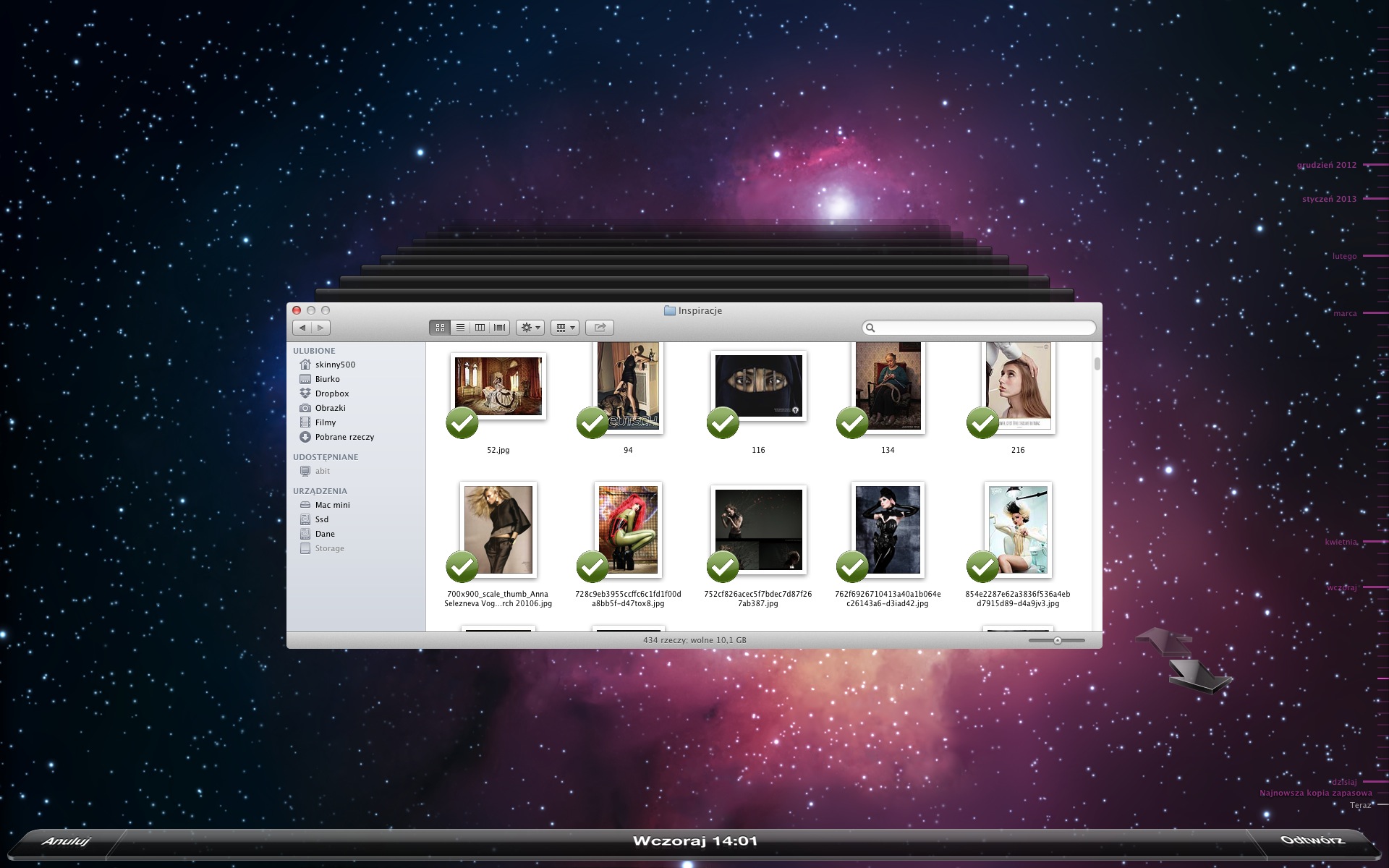
All you have to do is open the chosen folder and select the date you want on the timeline—for example, yesterday at 2:01 p.m. And that is it: the folder will look exactly as it did then. My last drive failure was... two weeks ago. The one before that was around Christmas. Even though I had not had drive problems before those incidents, I had been making backups for a very long time (I do not particularly like learning from my own mistakes). Everyone should have backups, preferably two.
Smart Folders
In the past, if you wanted RAW files in one place, JPEGs in another, and video files somewhere else, you had to put them in the relevant folders. On a Mac, you can place them wherever you like and display them later through Smart Folders. For example, suppose I want a folder containing every RAW file I shot with a Nikon D800. RAW files from other cameras should not appear there, nor should JPEGs. Normally, I would have to put D800 files into a separate folder from the start. It gets more complicated if I also want a separate folder containing all RAW files, both from the D800 and other cameras. Some files would then be duplicated.
In OS X, I only need to create a Smart Folder. This is a folder that does not contain files but can display them according to defined criteria. So I specify that I want NEF files created by a D800. I can add that they should be only photos taken with a particular metering mode, ISO, aperture, and so on; specify where they should come from (a particular folder or the entire drive); or when they were added (at any time or, for example, within the last 30 days), and so on and so on... From that point, opening the Smart Folder immediately shows me those files. When I copy new photos anywhere, they also appear in the Smart Folder as long as they meet the defined criteria.
It is like an advanced search engine, except everything is displayed instantly, and I can save the folder on the desktop, for example. It can be used not only for photos but for other things too. I use it to save, among other things, graphics downloaded within the last 30 days that are in my Downloads folder. With the right settings, only photos appear there (I save inspiration this way, so I do not have to sort it manually later).
Multiple desktops
Desktops—or Spaces, as they are called in OS X. Working with several Spaces is supported natively by the operating system, and it is difficult to return to a single desktop afterward. One can display Internet-related things—the browser, FTP client, email application, and so on. A second can hold photo-related work—in my case, Adobe Bridge and Photoshop. I use a third for multimedia, and so on. That makes it easy to stay organized: there is no need to keep minimizing windows, and everything remains sorted. Once again, work becomes more comfortable.
Summary
I cannot imagine going back to Windows, and I know more and more people who feel the same. But there are also people to whom it makes no difference. It is like one person buying a Logitech mouse for PLN 350 while another buys a “rodent” at a supermarket for PLN 15. Or one person choosing an S-Class while another chooses a Polonez and insists it is no worse—after all, it drives.
Want to comment? Do it here.