Backup on a network drive - troubleshooting

Time Machine on a NAS Time Machine is familiar to every Mac user. It is software built into the operating system that makes backups and lets you restore files from any point in time. For example, I can load the version of this article that I wrote last week, or 10 minutes ago, and so on.
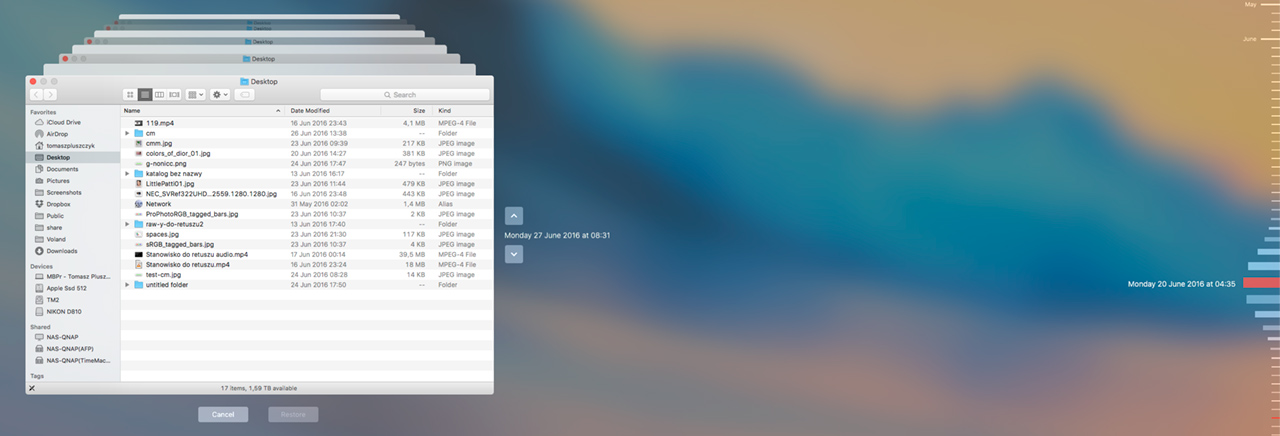
Since Time Machine can be used through a NAS instead of connecting a drive directly to the computer, that is obviously what I did. Unfortunately, I had problems when I used the standard method of setting up Time Machine on a QNAP NAS. The volume intended for backups would sometimes appear on my computer and disappear at other times. It definitely did not work the way you would expect from Apple. In the end, I used the simplest possible solution. I just created a backup folder on the drive in the NAS and shared it over the network.
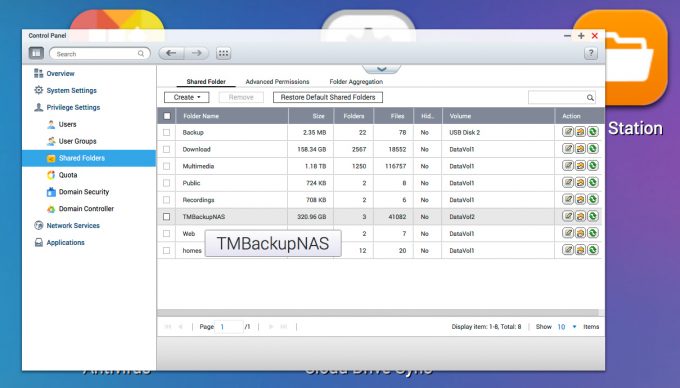
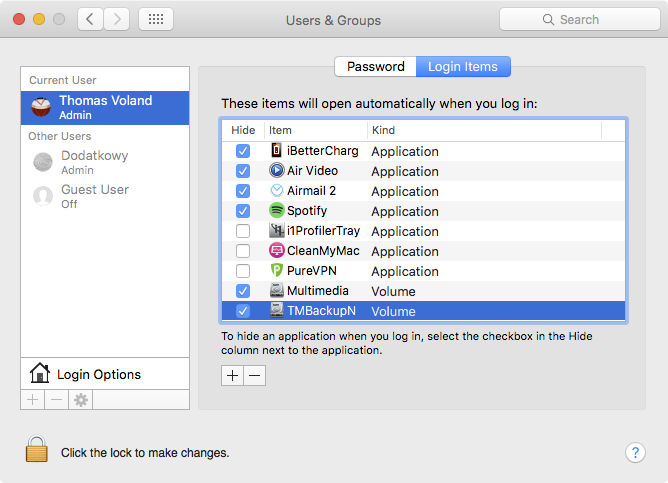
Then I mounted it on the computer over AFP and configured it to mount automatically when the computer starts*. Finally, I selected it in the Time Machine settings. I have had zero problems since then.
*System Preferences > Users & Groups > Login Items (add the volume there, and preferably select the option to hide it during startup)
Indexing
Drives on Macs are normally indexed, which makes searches nearly instant. However, network drives are not indexed. Otherwise, computers connected to corporate networks would go crazy. As a result, searching network volumes is slow and limited, just like on Windows. This makes smart folders impractical and prevents you from simply using search quickly. That is unacceptable for me because I want instant access to my photos not only when I am logged in to the NAS admin panel, but also when browsing files in Finder. So you need to take a few steps to enable indexing.
Apparently, Synology recently added Spotlight-compatible indexing to its NAS devices, so I think its software handles everything by itself. But I have a QNAP, not a Synology. I therefore wanted the computer to handle indexing, even though the drive was on the network.
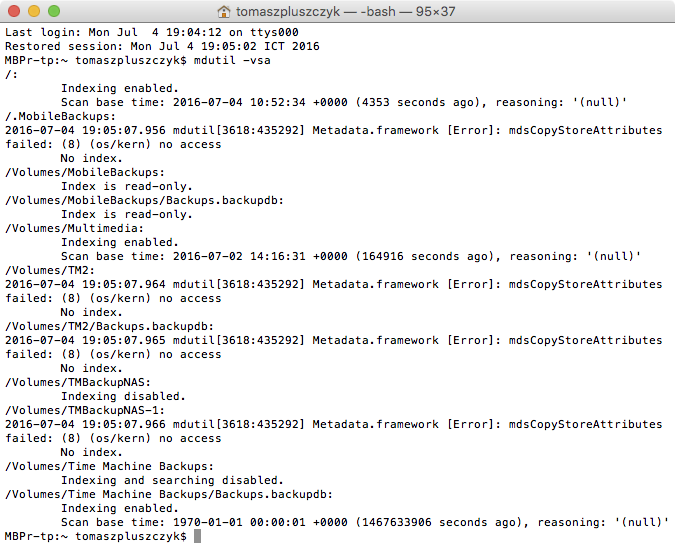
I followed the steps below on El Capitan 10.11.15 with an AFP volume. They probably would not work over SMB, so you would first need to mount the network volume over AFP. Once that is done, open Terminal and enter this command: mdutil -vsa
This displays information about which volumes are indexed. It also shows the names under which the operating system sees them. This matters because they can differ from the names shown in Finder, especially when several volumes have the same name, whether they come from different places on the network or are mounted in the system using different methods. Network volumes are never indexed, so they will show Indexing disabled.
You need to change that. Enter this command:
sudo mdutil -i on /Volumes/NazwaWoluminu
To make sure, you can use mdutil -vsa again and check that the selected network volume is now indexed.
You need to confirm it. Open Spotlight and type anything. A progress bar must be visible.
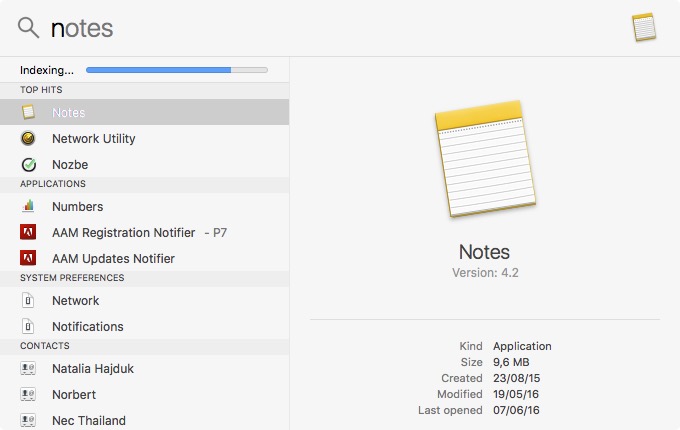
The bar may not appear. That means there is still a problem to solve. In that case, go to System Preferences > Spotlight > Privacy, add the volume that needs to be indexed, and then remove it from the list. You can do this immediately without waiting. Indexing should begin, and restarting the system will not hurt either. You can also use a Terminal command that forces the index to be rebuilt: sudo mdutil -E /Volumes/NazwaWoluminu
In my case, even though indexing had completed, it was clearly incomplete. So I installed Qsirch directly on the NAS. It provides fast searches from the QNAP admin panel. I think it works with Spotlight in some way because Spotlight only began working as it should after I combined both methods. On the other hand, there is a small chance that this was just a coincidence. Note: the program requires a NAS with at least 2 GB of RAM, and 4 GB is recommended.
Now I can search network drives in Finder just like local drives. My only concern is whether Spotlight will update the data continuously or whether I will have to rebuild the index manually after adding new files or making other changes. If that becomes a problem, I will simply create some kind of action that reindexes it every day.
Note: I am no expert on this stuff, so please do not ask me for more information about it because I will not be able to help anyway. I found many guides online, but they did not work for me because they covered older systems, or simply because my knowledge was too limited. Eventually, I managed to put all the information together in a way that worked on El Capitan, and I described it above.