How I manage all the photos on my drive
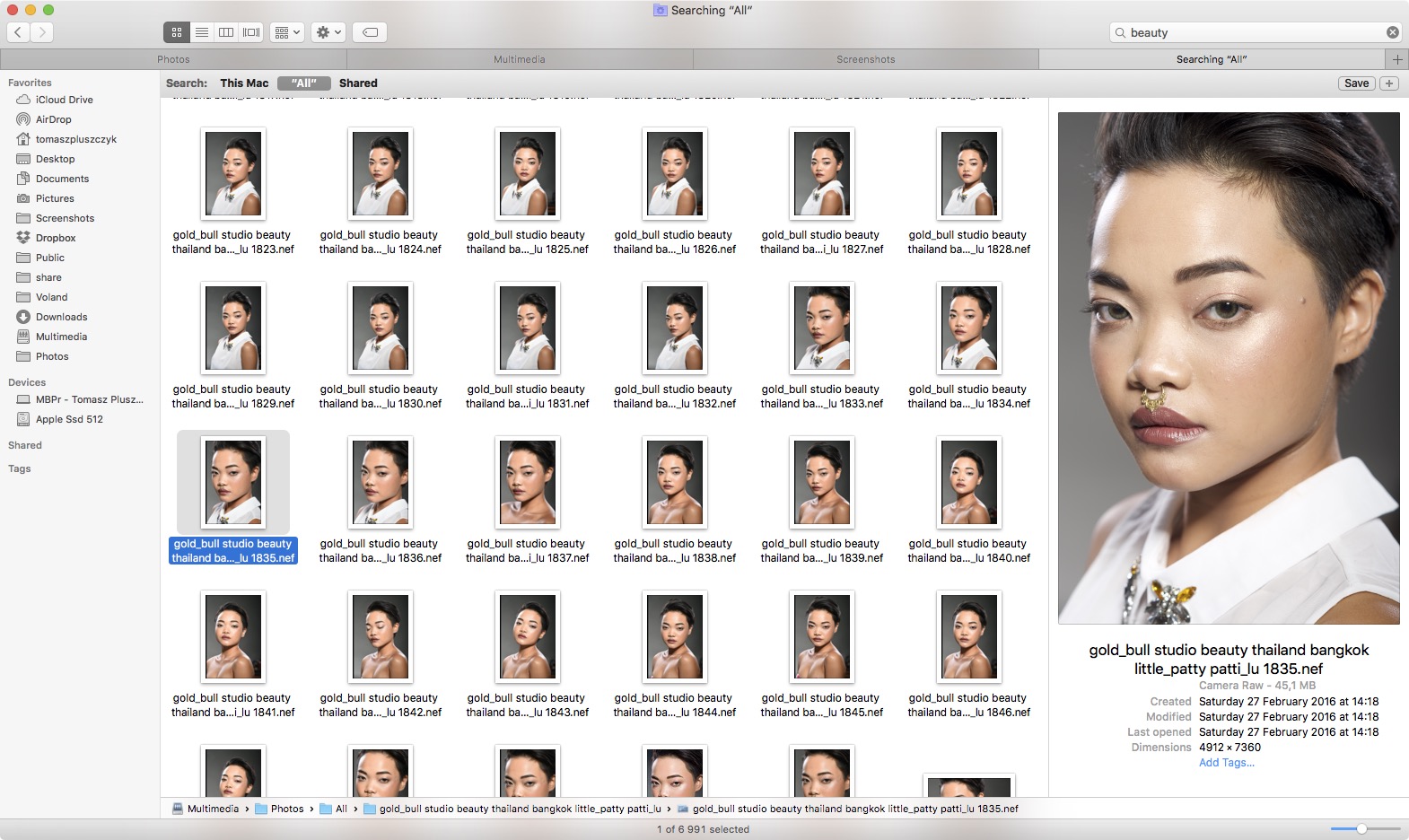
The more shoots I do, the harder it is to manage all my photos sensibly. To me, sensible means always having instant access to the files I need. My old method was poor because it relied entirely on putting photos in specific folders. I'll explain in a moment why that was a weak solution, but the important part is that I've finally replaced it with something better. I won't be discovering America in this post. Instead, I'll cover simple, obvious things that aren't always considered at the start.
At last, I can instantly display every fashion photo I've taken with a particular model, makeup artist, or both at once. I can narrow that down to outdoor photos taken in Poland. I can also display a particular shoot—either all of it or only the beauty shots. Or I can show only tests shot at 50 mm, and so on. The possibilities are practically unlimited.
There are probably hundreds of ways to store photos, possibly better ones than the method I chose, especially solutions based on additional applications. But I didn't want to depend on one program. Among other reasons, I wanted to be able to search my shoots conveniently regardless of the operating system and software I was using, since you never know when software will stop being supported. Rebuilding everything every few years would be ridiculous.
My solution is very simple: I name photo files according to a specific pattern. As a supplement, I also use features built into OS X on Macs (it will work on Windows too, just more slowly and to a limited extent). You can also use additional programs. Because all the essential information is contained in the filenames, the photo organization will work regardless of the software. As I mentioned, what matters to me is that I can use those extra features, but I don't have to.
My old method
I used to store photos on a drive in the following folder structure: “Drive” > “Photos” > “Camera model” > “Makeup artist's first and last name” > “Shoot name” (made up of the model's or models' first and last names, or the name of the shoot, such as “Makeup trends—fire and water,” “The Vampire Diaries,” “Zombie,” and so on).
You could say I sorted shoots by the makeup artists who worked on them. That was the most convenient approach because there were far fewer makeup artists than models, and it was easy for me to associate a particular makeup look with its creator. If there wasn't a makeup artist on a shoot, the photos simply went into the “No makeup artist” folder. If I photographed landscapes, the folder order would probably look something like this: “Drive” > “Country” > “Province or state” > “City.”
Until then, photo filenames didn't matter to me. That definitely wasn't a sensible approach— it should have been the other way around.
Time for a change
The names and folder structure should be irrelevant. In addition to regular folders, OS X lets you create far more practical Smart Folders, where the file's physical location on the drive doesn't matter much. It's worth taking advantage of that.
Spotlight
Pressing Command + Space gives you access to instant search, handled by Spotlight in OS X.
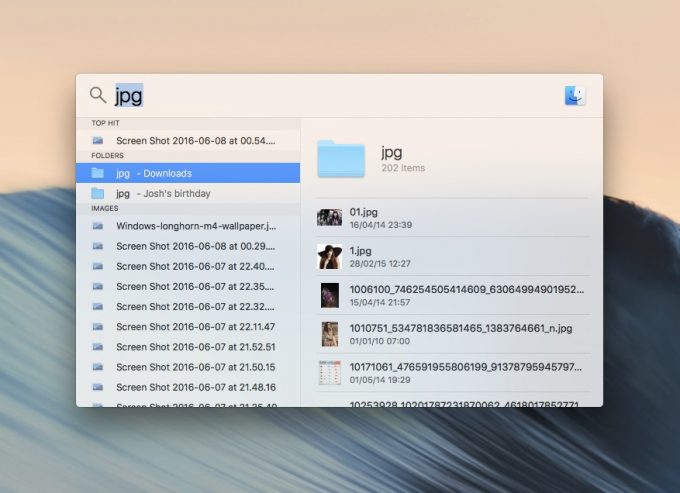
Spotlight
With photos cataloged sensibly, this is a quick and convenient way to reach them. Spotlight also searches inside documents (spreadsheets, PDFs, text files, and so on), their EXIF data, and all the information contained in a file. That means it can search photo metadata containing aperture, shutter speed, and other information. It works the same way when searching directly in folders.
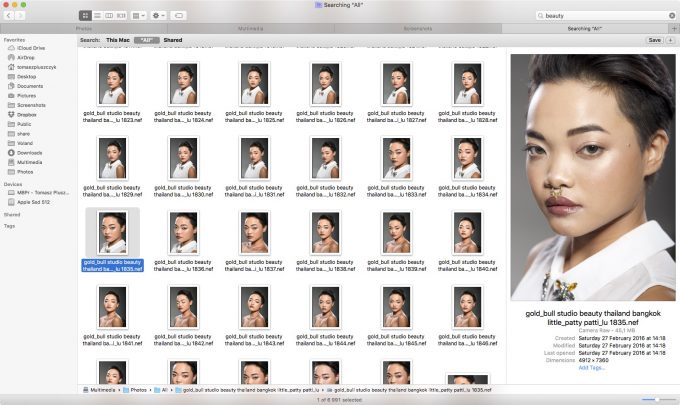
Searching folders in OS X—beauty RAW files
Spotlight was also promised for Windows Longhorn (under a different name, of course), along with a new file system. As we know, Longhorn never materialized. Instead, Microsoft released a crippled version offering a fraction of the promised features—a parody of a good operating system called Vista. Even Windows 10, which appeared many years later, doesn't have the search and file system Longhorn was supposed to include.
Windows therefore has no equivalent to Spotlight, but its regular search can still handle my current method of organizing photos because, in most cases, searching filenames alone is enough. You can also use additional search programs.
The new method
The way I now catalog photos on my drive is very simple. I decided on a naming pattern and stick to it. Individual parts of the name are used later for searches and Smart Folders. The naming pattern looks roughly like this:
_shoot_name studio studio_name beauty country city model_first_name_last_name next_person_first_name_last_name photo_number_. The camera assigns the number; it exists only to keep individual filenames from being identical.
Example:

Example 2:

Each photo file therefore contains the shoot name, location, type of photo, and names of the people involved. If I shot beauty and then fashion during the same shoot, some photos naturally include “fashion” and others “beauty.” You can add more information too—whether it was a TFP shoot, the client's name, and so on.
The underscore between a first and last name can be replaced with another character, but I preferred not to use a space. As I wrote at the start, I want this method to be universal, and some search engines may interpret Merry Jane as a search for every Merry and every Jane at the same time rather than only that exact combination. Quotation marks should usually help, but I didn't want to risk it. This may prove useful one day when accessing files remotely, searching with an additional program, and so on. A space will work fine for the system search, but I use an underscore simply for peace of mind.
I settled on one way of writing names. If I used the shortened Polish names Kasia, Asia, and Ola for some shoots, I can't use the full forms Katarzyna, Joanna, and Aleksandra for others, because the search would return incomplete results. If a model changes her last name in the meantime, I'll keep using her maiden name or replace it across all earlier shoots. That takes a few seconds for every shoot at once, so it isn't a problem.
I've already explained the point of all this: instant access to every shoot. I can display all shoots with a particular model or makeup artist at once. I can show only one type of photography featuring those people—for example, only studio fashion shot in Warsaw with makeup artist X. And I don't have to remember the paths to those shoots or wonder which camera I used and whether that was definitely the makeup artist, or perhaps someone else, because under my old sorting system that determined where the files were stored.
Almost done
When I need specific photos, I just enter the “tags” into the search field, and that's it. OS X search—Spotlight—is very capable and works quickly because it indexes the drive in advance. As I've already written, it searches more than filenames. You can search for particular focal lengths, shutter speeds, and so on because those details are stored in photo metadata.
I enter _summmer_time_ and get the shoot with that name. There were two models, but I want photos of only one, so I enter her first and last name. Since I need a photo of her face rather than her full figure, I add beauty. Entering the whole query takes a few seconds, and the photos I want appear instantly, without extra shots and without clicking through an entire folder path.
Batch file renaming
Of course, I didn't have to rename every file individually. It's done in batches—one entire shoot at a time. In OS X, just select the files and choose Rename from the context menu.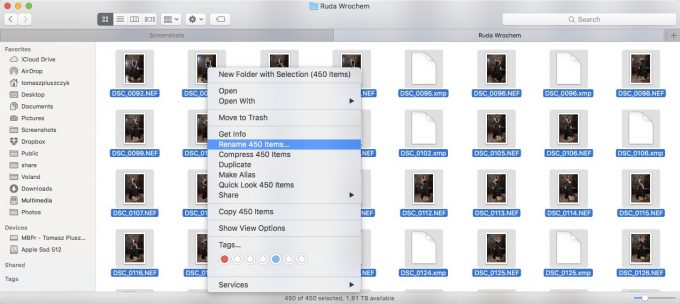 Windows couldn't do this in the past; I don't know whether it can now. If it still can't, use an additional program that offers the feature, such as Total Commander.
Smart Folders (OS X)
In principle, I could now put every photo in one folder without any subfolders. Even so, I always keep a folder whose name contains the same information as the filenames inside it. This makes it more convenient to display results from different shoots. But I no longer have any of the extra subfolders I used before, such as camera model or the country where a photo was taken. If two makeup artists worked on one shoot, I no longer need to separate their photos into different folders as I did before (remember, I used to sort everything by makeup artist). Smart Folders do all the work.
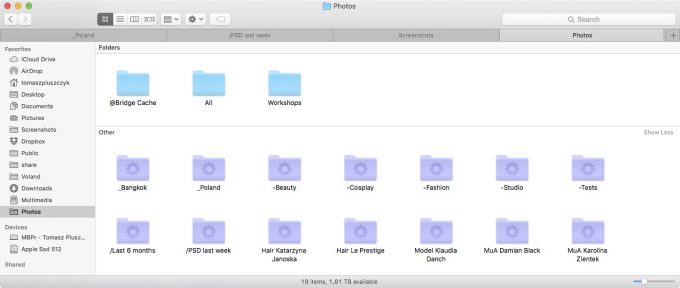
A collection of Smart Folders displaying photos according to different criteria
In case someone has never used OS X, I'll explain more precisely how such a folder works. You don't copy any files into it. The files remain elsewhere on the drive and are displayed in the Smart Folder according to defined criteria. You can compare this to playlists in music applications. I have MP3 files on my drive and can put them into any playlists. If one track appears on ten playlists, that doesn't mean it has been duplicated ten times on the drive. It's still one file, accessible from several places. Smart Folders work the same way and can also be used for music. For example, I can define a folder (playlist) that displays only music longer than five minutes. Or only techno.
It's the same with photos: I tell the search to display only files created in the last six months and stored on a drive called “Multimedia,” then save it as a Smart Folder, for example on the desktop. Done. Or I create a Smart Folder first and then define what it should display.
Example: I want to separate shoots done in Poland from those done in Thailand. I create a Smart Folder and define that it should display every photo containing the word poland (I put the country in every photo's filename because I use a camera without GPS). When I open that Smart Folder, I'll see only photos from Poland, but all of them will appear regardless of type and other details. If I add new photos to any subfolder in the photo directory, they'll automatically appear in the “Poland” folder too, provided they were taken in Poland. The drawback is that I can't place the photos on a map as I could with GPS and applications that support it. That's generally more useful for landscapes and reportage than for shoots with models, though.
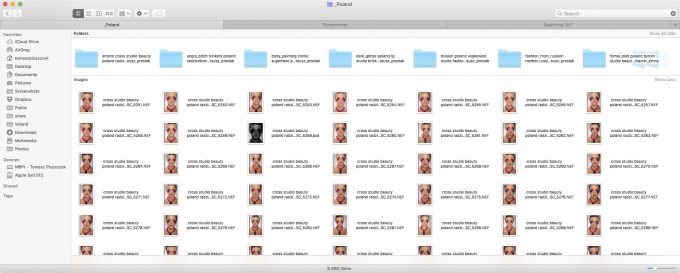
A Smart Folder in OS X displaying only photos taken in Poland
The same applies to the makeup artists and hairstylists I mentioned. Previously, I could sort shoots by one group or the other. Now that isn't a problem: I create a Smart Folder that displays photos on which a particular makeup artist did the makeup, and I'm done. If I open makeup artist X's Smart Folder and also enter the phrase beauty poland NOT radzionkowin the search box, it will show every commercial beauty photo I shot with her outside Radzionków.
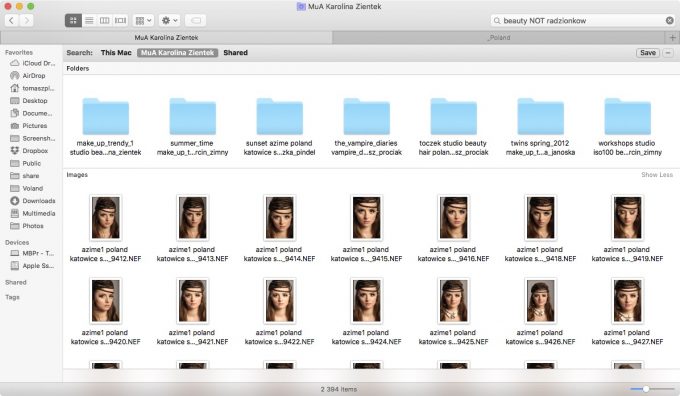
A Smart Folder with temporary filters added (only beauty photos taken outside Radzionków)
If I also add commercial, the TFP shoots are omitted. You can keep inventing combinations forever. It all depends on what you include in the filenames and what is in the EXIF data.
Back to Smart Folders themselves: I also have one that displays only photos taken during the last six months (you can define the period from which files should be shown). It's there in case I want to check quickly whether any recent photos are worth printing. I also have a folder that displays only the photos I edited in Photoshop this week. If I edited 15 photos from seven different shoots, I won't see any other photos when I open it. These are the most basic uses of Smart Folders, but they're capable of much more.
Complications
If someone stores photos on a network drive (as I've recently started doing), there's a major problem. Those drives aren't indexed. Searches are therefore very slow, and everything I described above depends on search. In Terminal, you can check which volumes have indexing enabled with the command mdutil -vsa
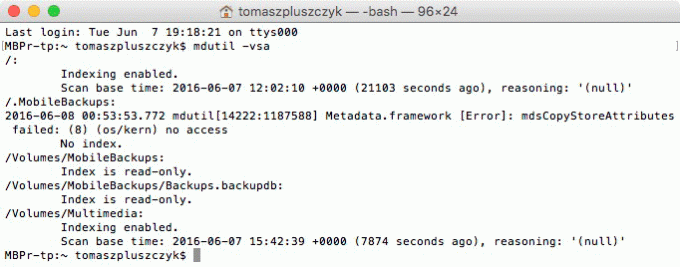
Next, use the command that enables indexing on the specified drive, including a network drive: sudo mdutil -i on /Volumes/VolumeName
The drive should be mounted over AFP. I'll write more about all of this in the next article, which will cover the hardware side of how I store photos.
Summary
I'm not going to persuade anyone to store photos the way I do. Do whatever works for you. This cataloging method simply has many advantages for me. Renaming every file takes some time. It took me several solid hours for more than 500 GB of photos, and I still have a large portion left to finish. Someone who does five shoots a week, with beauty, portraits, tests, and fashion during most of them—and several models and makeup artists on each—will probably spend a full day or longer on it. But cataloging every photo sensibly will be even more important for those people than it is for me.
This is only half of the article I wrote. In the second part, I focused mainly on hardware—what I store my photos on, how I make backups, and so on. The post became long enough that I split it into two parts. I'll publish the rest separately on the blog, probably next week.
In the meantime, I've done several shoots waiting to be written up and written many other articles. Only some of them cover photography, so the rest will probably appear elsewhere. I've slowly been thinking—for several years now :)—about launching a separate blog for the other posts. There would certainly be far more of those than posts about photos.