What Monitor Should a Photographer Use for Photo Editing? Also for Graphic Design, etc. (Updated February 29, 2024)

Table of Contents:
Page 1:
- Introduction
- CRT and LCD - were things better in the past?
- Characteristics of photo-editing monitors
- Is it worth investing in a good monitor?
- A monitor for photographers
- Advantages of 4K/UHD monitors for photography
- How can manufacturers "cheat"?
- Calibration
- Graphics card
Page 2:
- List of monitors for photo editing - HD and QHD
- List of monitors for photo editing - UHD and 4K
- Apple monitors for photography
- What to buy as a secondary screen
- Used monitors
- Summary
The best monitors in each price range
There are many good monitors, but only a handful of models leave the competition behind in terms of value for money. Enter your email address and I’ll send you the list, along with an explanation of why these particular models are worth your attention:Next page
Last updated: February 29, 2024: I've started a big update to this post. The first page is already through an initial update, but I’ll probably make a few more corrections. I’ll update the second page, the one with the list of models suitable for photo editing, in March 2024. However, many models have already been removed from this list due to the end of production.
A monitor for photo editing and a regular office or home screen are completely different designs. I’ll try to explain what a photo-editing monitor is, why you won’t find a single one of them in the offers of most manufacturers, and which models will be suitable for photo editing. This is quite a long read, but this topic cannot be summarized. The article also includes a list of all monitors suitable for retouching, along with information about the differences between them.
If you ever plan to buy a monitor for photo editing, the following text may be very helpful. If you think you don't need such a monitor and you are a photographer, you should read on even more...
I added affiliate links for each monitor and later added price-comparison tools too.
CRT and LCD - were things better in the past?
CRT vs. LCD
Back in the days of CRT screens, i.e. large, heavy screens with small diagonals (15" was standard, and 21" was considered very large), you could buy a good monitor for very little money. There was plenty of choice, because the same model that was suitable for graphics and photography also also worked well for gaming and for most other uses. However, apart from gaming, and focusing on work, these were great monitors only by the standards of the time. One could only dream of having such a wide gamut as we currently have, proofing options were much more limited (CMYK? No way...), and the 4:3 aspect ratio made it impossible to work comfortably on one screen. In addition, running a CRT was far more expensive than using an LED-backlit LCD because CRTs consumed so much power. However, LCDs were poor at first and only after years of refining the technology did they become better. In addition, if you buy the first screen you come across, you will most likely end up with a complete piece of junk, compared to which a CRT may actually seem okay. Not many people work on truly good monitors. For years, this was due to the high price, but now I think it is mainly due to not knowing what is worth buying and what should be avoided.

LCD especially initially, they had a lot of flaws. There were 4 main types of panels: TN, IPS, VA and PVA. The cheapest screens were based on TN, which reproduce color very poorly and have downright terrible viewing angles. However, there are no visible delays when displaying fast action, so they also worked well for gaming. To this day, most monitors and almost all laptop screens are based on TN. WITH VA it was popular at one time MVA - it is something like a combination of TN and IPS, but it has been replaced by newer generations of TN and has not been used for a long time. Better designs used dies PVA and IPS. With the former, the shades changed slightly when viewed from an angle (mainly gray and black). However, in IPS, black was never "true black", and it turned silver if the lighting in the room was not strong enough. Another disadvantage of IPS was that the image did not look clear - it seemed "rough" (you could see lines between the pixels, which made the white look a bit dirty). In both cases, response times were much longer than in TN. One of the previous versions of IPS was E-IPS, but don't confuse it with e-IPS. The latter is a low-budget version used in cheaper designs. The latest generation of IPS is called AH-IPS, there is also an equally good panel close to it PLS.
In addition to the LCD disadvantages that I have already mentioned, there were also other quite serious ones. First of all, each LCD had its own native resolution - at nearly any other resolution the image looked much worse. Secondly, there could be dead pixels on the panel, which was not the case in the CRT. These are just the basic problems that cathode ray tube monitors did not have. Over time, some of the shortcomings were alleviated and even eliminated completely, but the beginnings were difficult and cheap monitors are still poor today. As a result, many categories of monitors have been created, based on different panels. What mattered most to gamers was speed, office monitors were supposed to avoid eye strain during long hours of use under 300 lux of lighting (this is the level required by health and safety regulations, so the backlight of many monitors was too strong for home conditions, even when set to minimum). A photographer, however, needed excellent uniformity and the best possible color reproduction in the AdobeRGB space, and all this required the development of advanced solutions.
The end result was that making good monitors was not very profitable and almost no company decided to go in that direction. Instead, crap was mass-produced. The average buyer accepted this—in return, they got a thin, light and energy-efficient monitor. Unfortunately, photographers, graphic designers and designers were not able to work on something like that, so they remained stuck with CRTs.
However, two companies (Eizo and NEC) decided to create monitors for professional use, along with models for more demanding enthusiasts. In fact, several manufacturers tried their hand at the beginning, but only these two survived. Unfortunately, developing appropriate solutions cost a lot of money, which translated into the price of the product itself. There was a time when professional photo-editing LCD monitors could cost over PLN 20,000... Fortunately, those times are behind us (nowadays, a 4K photo-editing monitor can cost that much :)).
While supermarkets still sell poor-quality screens for the masses, photo-editing monitors have been highly refined and are much better than those we had in the CRT era. Screen sizes have increased dramatically, and with it the resolution. Aspect ratios have also shifted to widescreen, which is definitely more practical when working with multiple palettes. Every company can offer those things, but when it comes to retouching, other things that only Eizo and NEC care about are also of great importance. Other manufacturers are trying to enter the professional market too, unfortunately mostly through marketing. So Dell U2413 monitors are being created, which are better than typical mass-market screens, but have nothing to do with photographic applications. What's worse, models with the same model number may actually be different monitors, manufactured by different factories and having different parameters. Unfortunately, such monitors are often recommended on Internet forums by people who have never used a real photo-editing monitor. This creates many myths and frustration later when it turns out that the monitor does not fulfill its role at all.
Photo-editing monitors
Photo-editing monitors display a gamut similar to AdobeRGB (i.e. colors can have much greater saturation - the same as can be obtained in prints). This is useful for photos taken in colorful locations, nature photography, or even iPhone snaps, which have a comparable P3 space. In hardware-calibrated monitors, you can reduce the gamut if necessary. The gamut does not depend on what panel was used, but on how it is backlit. PR teams tempt us with all sorts of numbers, and you can safely ignore every one of them. So what if some models boast a wide gamut if it has nothing to do with AdobeRGB, which is used when working with photos?
In the past, it was important that the GB-r LED and W-LED backlight with red and green phosphors, not only provided a wide gamut but was also much better for the eyes than the cheapest LEDs (blue diodes with yellow phosphors). Monitors with such poor backlighting often have cold colors and can be tiring for the eyes. It also happens that the LED backlight flickers (especially at low brightness - it is related to the PWM frequency). Some people see it right away, others not at all. In the days of fluorescent lamps, this was not a problem, but LEDs are used everywhere now, which, in the case of equipment designed by the accounting department, causes problems. The monitors that you will find in my list do not have such shortcomings and, in general, today there are fewer and fewer such problematic models.
The backlight in a photo-editing monitor must be as even as possible - there cannot be a situation in which some parts of the screen are brighter and others dimmer (and this is the case in many monitors). After all, corrections are made based on what is seen; including brightness. The same applies to the uniformity of the white point - if I am retouching a beauty photo and the lower left part of the screen renders colors warmer than the upper left one, I will want to correct it and this will only make the matter worse. I have the impression that today it is the uniformity of the screen that distinguishes good graphics monitors from others.

Displaying two photos next to each other then makes no sense. When you zoom in on a photo, it can become thoroughly confusing. Now imagine that a design or retouching studio works on such monitors and employees exchange projects with each other... Or a more mundane situation - I have edited a photo and am starting the second one from the same series, so I display it next to the already finished one and make corrections. I swap the photos (the one on the left is now on the right and vice versa) - on the photo-editing monitor the photos still look the same as before, but on the amateur monitor they are not the same. This is because of the uniformity problems I mentioned. This was driving me crazy and was the final reason to switch to a good monitor.
Color reproduction
I will give an example here - you calibrate a standard monitor and a photo-editing monitor. You put them next to each other displaying the same image, but it looks different on each one - the colors shift toward different hues, the contrast is different, and on the cheaper one, not only is the color saturation lower, but there are no gentle tonal transitions or subtle variations in the model’s skin. In addition, when you move the portrait around the screen, the skin color changes depending on where the photo is at that moment. As if that wasn't enough, black and white photos get strange color casts. To put it simply, it can be said that when processing a photo on something like this, it is simply not clear what you are doing - what the user sees is far from the actual image. Also remember that it's not about making the photo look "cool", but making it look the way it actually is.
Now looking at my photos from the past, I see how many shortcomings they have. Not only are the brightness, skin color and contrast poorly matched, but there are also a lot of yellow, red and green color casts on the skin that my previous screens simply couldn't show. All this will be visible on the prints (don’t confuse high-quality prints with photo prints from minilabs—the latter are terrible compared with what proper printing can produce). Today, an average monitor costing a few thousand zlotys is no longer junk that cannot display the image correctly, but the variation in quality is still large, even if we are talking about different copies of one model. In graphics monitors, these differences are much smaller, although they also occur in cheaper models.
Is it worth investing in a good monitor?
Of course it's worth it, but it's a bit like with TVs - one person will be satisfied with an LCD with gray-looking blacks, where the image will be devoid of any details and the whole thing will consist of larger or smaller spots, while someone else will choose a calibrated plasma, with excellent black and an image full of detail. Needless to say, if you also make films, and not just watch them, not seeing these details will be a huge problem. It's similar in photography.
I used to think that top IPS and PVA panels from companies such as Dell or LG were good for photos. Now I know that my knowledge was simply at an embarrassing level and I had no idea how much I was missing and how little detail I could see compared to how much I could see with better equipment. Not to mention that in the end the photo looked completely different than it should have. When I got my hands on a magazine with a shoot that I retouched on a Dell 2408, I was close to having a heart attack. Of course, later, when I had a better monitor, I had to re-edit every photo in my portfolio. It's something that everyone has to figure out at their own pace, just like with taking photos. Some people will keep shooting weddings with a kit lens; others will decide to improve, take better and better photos and attract more demanding clients and much higher rates, but they will probably need better lenses for this.
How can manufacturers “cheat”?
Certificates, assurances of uniformity, etc.
It happens that a company boasts excellent uniformity, low deltas, etc. All this despite the lack of electronics that would be able to ensure it. Sometimes special certificates are even attached to confirm these parameters. Actual use of such a monitor completely contradicts the manufacturer's assurances, and the calibrator shows completely different results than the certificate. Did the manufacturer lie? Of course not. The catch is the testing methodology, which isn’t disclosed. Tests can be carried out in any way, for example by measuring the uniformity of the screen on a grid whose measurement points are all near the center instead of extending almost to the edges. Does the certificate contain real data? Yes. Is it great for marketing? Without a doubt - just read the forums. What effect does this have on quality? Zero. Eizo and NEC publish the complete test specifications, and their tests are performed to truly represent the quality of the monitor, so the certificate results match user measurements.
Let me give you another example Dell U3219Q, which I use as an additional side monitor, for purposes unrelated to photography. What good is the screen-uniformity correction used for the certification measurements if that feature turns off when I change the RGB settings during profiling? However, Dell withdrew from pseudo-hardware calibration years ago. And this wasn’t a cheap model—it cost PLN 4,000. I should be happy anyway, because it's still better equipment than its counterpart from BenQ and other popular brands, while NEC would have given me hardware several classes better at that price, but unfortunately smaller, and I needed the same size as my main screen for purposes unrelated to photography.
100% sRGB gamut, 99% Adobe RGB, 4K, etc.
These are the claims marketers use most often to attract buyers. Worse still... it works. Information such as "70% sRGB display" tells you the display is terrible, because even if the color reproduction is excellent, it will only be in a small range that does not cover all the colors we need. However, information about 100% sRGB doesn’t tell you whether the screen is worth buying, because it may mean that the monitor reproduces this color space perfectly, but it can also mean that it has a gamut of the same size/volume, and it will still cover 70% of what the sRGB solid contains. Will this then have any impact on the quality of the display? No - the worst monitor in existence may be described as 100% or 120% sRGB, and the color reproduction may be so terrible that you will not be able to browse Facebook, let alone edit photos. Size range Adobe RGB does not have to be the same as the Adobe RGB color space. It is enough that their 3D solids have a similar volume and you can write something like 98% Adobe RGB, or even 120%, because such cases also happened. Therefore, information from advertising brochures, which are later repeated in many news articles and, what's worse, in many tests, means nothing. The same applies to review measurements made with a calibrator that isn’t suitable for real calibration (e.g. many publications, unbelievably, use Spyder devices, but I will write about calibration in more detail later).
Besides, a wide gamut is the last thing you should pay attention to. For most applications, accurately reproduced sRGB is enough, and a wider color space only matters when all other parameters are as good as they can be. Fortunately, this went hand in hand over the years and a wide gamut was available only in slightly more advanced models, and professional models are no longer available without a wide gamut, although today even weak gaming monitors have wide gamuts. There is even more confusion regarding laptop displays, which, even though they do not meet the basic requirements for photo screens, can have a wide gamut. Unfortunately, the idea that a wide gamut = a good screen still crops up sometimes, even though it has nothing to do with reality.
4K is a huge advantage on large external displays, but in small ones it offers no advantage over Retina, for example. The resolution itself does not translate in any way into the quality of color reproduction, etc. I haven’t even mentioned advertising nonsense, such as a contrast of 4,000,000: 1 I didn't even mention here, because I don't think anyone even pays attention to it anymore.
"But most people will still see my photos on a cheap monitor..."
This is probably the most popular, and at the same time the most nonsensical, argument that you don't need a good screen for online editing. It's amazing how often people say that someone doesn't need a good monitor because their customers don't see the difference anyway. The question is whether this person has no intention of improving at all and wants to forever remain with the current level of photos and clients for whom quality does not matter, only the low price of the service? Because if they want to change it, it will be difficult with this approach - a client is unlikely to choose a photographer who has lower standards for photos than the client does.
Do TV studios use average TVs because that's what viewers have? NO. If I retouch on a decent monitor that displays the photo as it actually looks, I can be sure that it is edited correctly. If I edit a photo on a piece of junk, every viewer will see it completely differently than I do, but their display inaccuracies will be added on top of the mistakes introduced on my side. If someone believes that everything will fit together to make a great photo - well, no arguments will be convincing for such a person and I wouldn't expect to make a career in retouching and photography.
In addition, the photo can be retouched and sent for photo prints at a minilab, or it can be sent for a proper print. Even a color-blind person will see the difference between a minilab photo print and a good inkjet print, because the print will be more detailed, not only without unplanned color casts and with much more saturated colors where they are needed, but also with a better tonal range. However, for the result to come out as planned rather than by chance, the processing must be done on a photo-editing monitor that is able to show what will come out of the printer (so a monitor limited to sRGB may not be enough, because printing can produce more saturated colors). Having a good monitor limits the number of variables (I wrote more about this in the article about color management).
The biggest absurdity is buying the best lenses and saving on the monitor. You end up in a situation where you can spend the same amount of money to improve your photos by a few percent, and only in huge prints, or take them to a completely new level in all conditions... and you choose the first option, i.e. the lens.
Monitor for a photographer - which one to choose?
The mere fact of having a panel IPS absolutely does not mean that the monitor is suitable for photography or graphics. The panel, no matter how good it is, will be of no use if it is not controlled by equally good electronics. Saying that "this monitor will be good because it has the same panel as the PLN 5,000 NEC" is pointless - it won’t match it in any respect. Electronics are very important! For example, the DUE system, which is responsible for correcting uniformity, delivers excellent results, which can be easily seen when you turn it off for a moment via the monitor's OSD. Then there are all the sensors, better backlighting, and so on. These monitors are much thicker than standard monitors for a reason. All this technology has to fit somewhere in professional monitors.
The difficult part is choosing a specific model. I would advise you to simply buy the most expensive and the best one you can afford. Think carefully about whether this is where you want to save money - the monitor will serve you well very long. You’ll replace your computer several times, and probably your camera too and the monitor will still work great. I'm trying to count how many computer upgrades my current monitor has survived, but I've had it for so long that I can't (at least 4). And as I have already mentioned, there is little logic in buying lenses for PLN 4,000 or more and saving on a monitor, which determines how the final photos will look.
There used to be more manufacturers of monitors strictly for graphics and photography, but there are only two left (Eizo and NEC), and the latter is also slowly pulling out. This is a very niche and thankless market - very few customers compared with gaming, but extremely demanding ones. Making such monitors is simply bad business. A better option is to make regular monitors but advertise them as graphics monitors. BenQ relies on this strategy the most, but others also have models advertised as graphics monitors, despite the lack of real hardware calibration, a sensible system to correct screen uniformity, etc.
Years ago I wrote that time would tell whether these pseudo-graphics monitors still maintain their parameters. Unfortunately, it turned out that even the completely new ones could barely compete with the cheaper NEC EA275Wmi, a monitor classified as an office monitor, which is no longer produced today and replaced by a much better model. There is basically no comparison with the Eizo and NEC professional graphics series, because they are a completely different class. For example, BenQ’s hardware-calibration software produces worse results than calibrating the monitors in software and to perform the correct calibration, you have to manually replace its files with different ones, which an ordinary user would never know about and would have no idea that after calibration, their monitor is not really calibrated and doesn’t display an image that matches the reference.
Eizo
In 2012, Eizo made a huge stir on the market. When it was thought that LCD technology would not allow for any significant qualitative leap and that we would have to wait for OLEDs for a revolution to occur, then the CX240 appeared
Placing it next to any other screen made viewers’ jaws drop because they couldn’t believe what they were seeing. Deep black, no silvering, clear image without the roughness typical of IPS, wide gamut, hardware calibration, built-in auto-correction sensor, and a satin panel combining the advantages of matte and glossy, but without their disadvantages. Photos on it look printed. What's more, this monitor did not cost PLN 15,000, but about PLN 5,000 (later even less). Reviewers agreed that it was a revolution, not an evolution. I was very pleased with it myself, but who wouldn't be? Currently, the CX series is no longer produced. This model was replaced by even better models, but at the same time much more expensive. Currently, Eizo is clearly developing strongly in film applications.
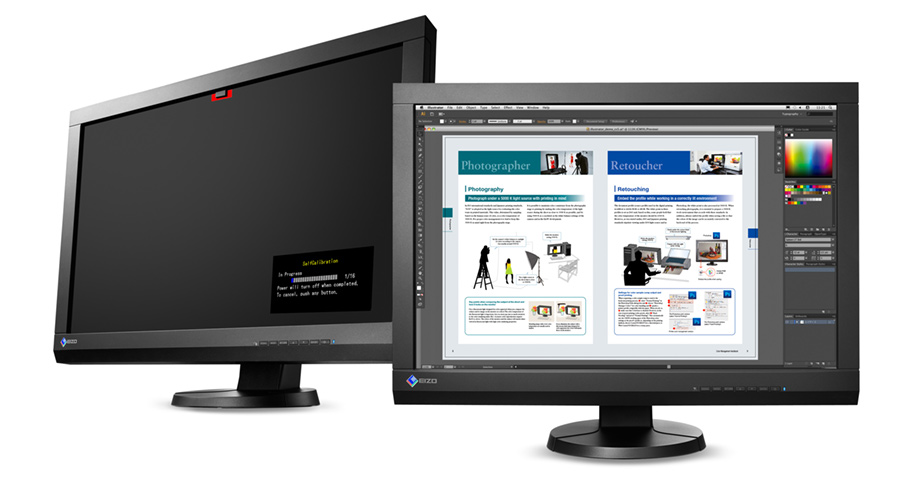
Eizo EV models are models for home and office, with all the consequences. They are not suitable for the applications we are looking for and I do not include them on the list of monitors at all, because in photography they have no chance with the EA NEC series, which is at a similar price. Foris, on the other hand, is aimed squarely at gamers, mainly competitive ones, because others will be more satisfied with standard monitors (EV, EA, etc.).
Unfortunately, in recent years, Eizo prices have again moved far away from NEC’s and for a photographer, from an economic point of view, only a few models make sense. That's why Eizo is promoting itself more and more in film applications, where they’re genuinely good for the money.
NEC
Another company famous for great monitors for graphics and photos. One advantage of this company’s monitors is the free MultiProfiler program, which allows for something like sensorless hardware calibration - it sounds incredible, but it works perfectly. Based on the factory linearization and data from many built-in sensors, the program changes the settings while maintaining the correct color reproduction. Initially, everyone assumed that if such a monitor logged a lot of hours, after a few years it would finally need to be calibrated using a standard method, but practice has shown that not only is that unnecessary, but it is actually better not to do it, because achieving such accuracy of the factory calibration is absolutely impossible with sensors costing several thousand zlotys.
In 2014, hardware calibration was available in Europe only on NEC’s SV series, but now the appropriate software is also available in cheaper models. Moreover, for some reason, in Poland you can buy calibration software much cheaper than in other parts of the world.
Markings
NEC used to have several series of monitors that are the same in terms of hardware (PA, SV and SV Reference). The SV and SV Reference met more stringent standards, which is exactly what we want. In UHD monitors, there were only PA and Reference versions, so there are two models instead of three, and now this division no longer exists, because the base versions of the monitors are so refined that binning no longer makes sense. However, in Poland (and later also in several other countries) at the end of 2016, the ColorTuned series was released, which included various monitor models. They are slightly more expensive, but have an extended warranty from 3 to 5 years and SpectraView II software included. Additionally, ColorTuned units are linearized before sale to the parameters most frequently used in photography (brightness 80 cd/m2, white point D65, Gamma 2.2). However, newer models turned out to be so uniform that the Color Tuned series also lost its meaning and instead, today the most popular models are simply calibrated before sale.
Unfortunately, in many NEC price segments there are no models competitive to Eizo, e.g. a wide-gamut, high-resolution 27-inch monitor. As a result, the product lines of the two companies complements rather than competes with each other.
Around 2015, due to the simplification of production, NEC began putting some of the advanced electronics from its graphics monitors into office models too, and their capabilities improved dramatically. That's why some of the EA series appeared on my list of recommended monitors. In addition, NEC also made some exceptionally good UHD monitors, but after Panasonic stopped producing its incredibly good panels, NEC’s range shrank too.
Advantages of UHD and 4K monitors for photography
4K monitors are models with much higher resolution (UHD screen has 4 times more pixels than FHD). However, for a long time, UHD monitors will not replace current models, but will be sold as separate product lines, and their prices will be much higher than the equivalent normal-resolution model. Each monitor from the list below is MST, but it can also be connected as SST (I explain what this means in more detail in the section on graphics cards).

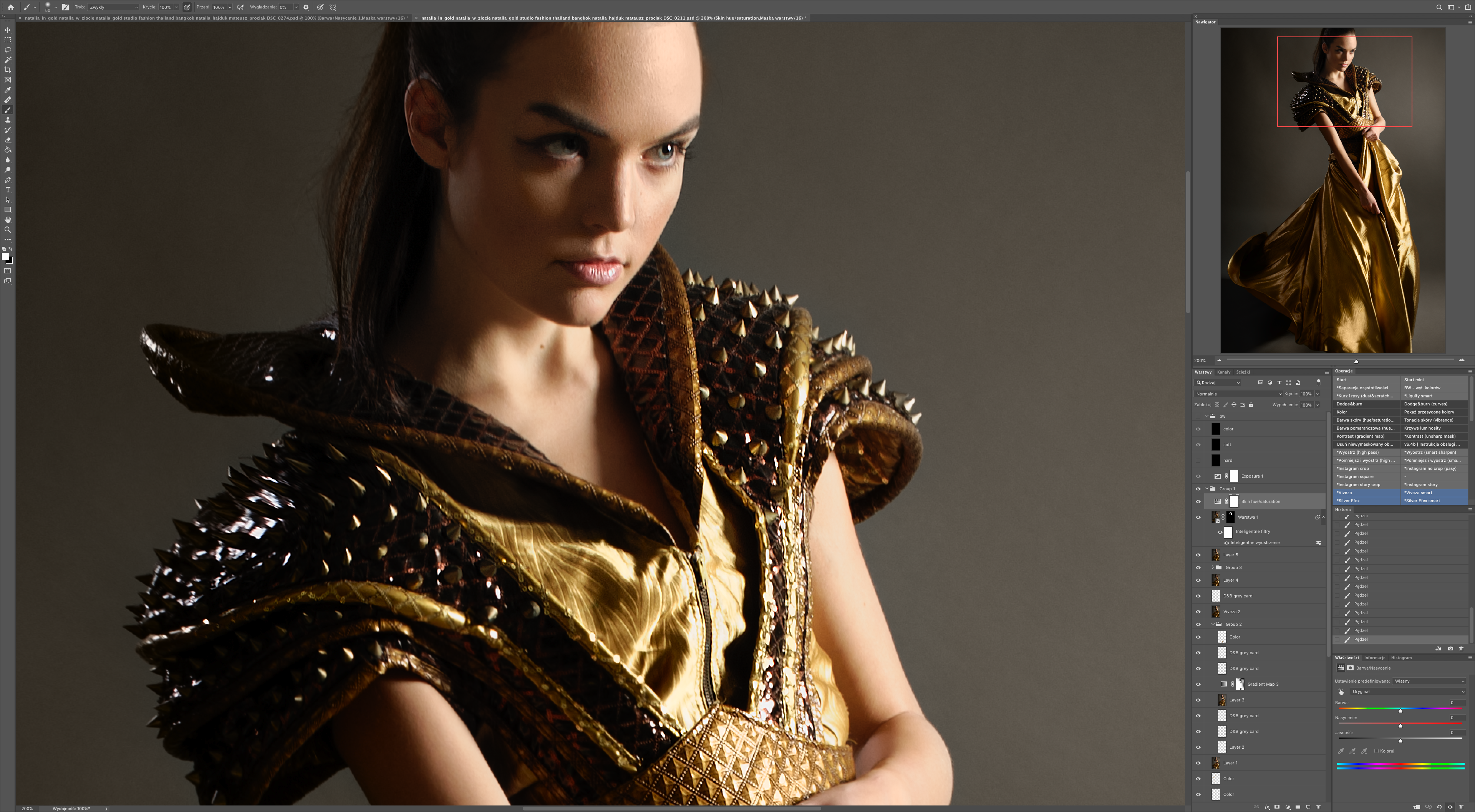
CALIBRATION
Depending on the model, the monitor can be calibrated in hardware or software. In both cases, you will need a calibrator (colorimeter or spectrophotometer). Some monitors have the appropriate hardware built-in, but most require an external sensor.
Hardware and software calibration
Hardware calibration is available in higher-end monitors and is much better because all changes are made to the monitor's LUT. Thanks to this, we get accurate color reproduction without losing anything in the process. However, during software calibration, changes are made to the LUT of the graphics card. This means that if something deviates from the norm, it cannot be corrected losslessly and gets clipped. For this reason, tonal transitions are no longer as smooth. The worse the monitor, the more you lose. Moreover, some manufacturers call even the ability to change the backlight power (which is available in every monitor), RGB weights or other basic parameters as hardware calibration. This is another reason to ignore what brochures say.
Basics and first calibration
The cheapest calibrator suitable for anything was Spyder 4, sold, among others, as Easy Pix 2, i.e. the one in the black housing (Spyder3, which was EasyPix in the gray housing, is garbage that can only be recycled). Currently, this design is no longer produced and used units have long since become useless, especially since they were very weak even at the beginning. A newer model has been released - Spyder 5, but it is still a poor calibrator and while using one on a Dell or Samsung may make sense, because we will never get a reference image on them anyway, at most we will only get a little closer to it, NEC and Eizo should be calibrated with a sensor that is actually able to perform a real calibration with the correct end result, and not with equipment that generates larger errors than the monitor itself. i1 Display Pro is essentially the only sensible choice, because it costs next to nothing compared to very professional calibrators, and the calibration results are good enough to satisfy anyone. Just don't confuse i1 Display Pro with i1 Display 2, which sucks. There are more expensive options beyond that, but not always better. i1 Pro2 is great (and many times more expensive), but ColorMunki (sold in several versions) is worse for monitor calibration than i1 Display Pro (especially when using native software). You always calibrate for specific lighting conditions. You can read about adapting the lighting in the room for retouching in my other article (here) – if the light is not appropriate, you can forget about accurate retouching.
You must remember not to calibrate the monitor immediately after turning it on - you need to wait a while until it stabilizes. With good current-generation monitors, that can take as little as three minutes; with worse ones, it can take half an hour. You don’t have to perform the calibration yourself. There are people who offer this as a service and really know their job. The costs vary greatly, but usually around PLN 200. He calibrates in Krakow Marcin Kałuża (Czornyj), in Katowice (although he travels to clients throughout Poland) Adam Jędrysik, and in Gdynia you can contact us about this matter Graficzne.pl. I’ll try to expand this list in the future.
Remote calibration (you send the monitor by courier and receive it back together with color profiles) is an option that you should consider carefully. Something may be misconfigured in your system, or other problems may arise and you won't even notice them, and the profile won't load correctly. With on-site calibration, a professional will sort everything out right away. Alternatively, you can calibrate by sending the monitor together with the computer, but I’ll always recommend doing it where the computer will be used.
A good monitor maintains its parameters for at least a year, and screens with an external auto-correction sensor (like the Eizo CX240 and many newer CGs) or with advanced internal sensors (like any NEC PA since they use LEDs instead of fluorescent lamps) should become boring before they ever need to be touched with an external calibrator. Initially, it was safe to assume that recalibration would be necessary after 2-3 years, but it turns out that after this time they still shine like new.
PS. While theoretically calibration for photos means selecting a white point of D50 (5000K), for viewing photos in daylight, or generally for most applications, it is definitely better to set D65, this is also the Internet standard.
WHAT GRAPHICS CARD? 30 HZ, 60 HZ, ETC.…
The graphics card in your computer is irrelevant when it comes to the quality of the displayed image. It should have a digital output, not VGA, and that’s all; today analog outputs no longer exist.
If you have one screen rather than three, the performance should be sufficient even with integrated graphics. However, there is a very big difference between working in native resolution and with scaling enabled—the latter affects performance much more than the resolution itself. With scaling enabled, it's worth having a better graphics card, and considering how much photo editing can be done today thanks to AI, it’s still worth having a fast GPU.
There used to be a section here about refresh rates and other limitations of old connectors, but today you don't have to worry about these issues because everything works as it should.
10 bits per channel instead of 8
For the past dozen or so years, if you wanted to take full advantage of a 10-bit panel, it was not enough to simply connect the monitor and that's it. Unlike games, applications don’t use DirectX; they use OpenGL. On Windows, for 10 bits per channel in OpenGL you needed an nVidia Quadro or ATI/AMD Fire graphics card and software that supported 10-bit color (Photoshop did this). Regular graphics cards (GeForce, Radeon, Iris, IntelHD, etc.) do not support 10 bits per channel in OpenGL. Now it’s simpler, with Nvidia you just need to install Studio drivers instead of Game Ready drivers and you’ll be able to use 10-bit color on regular graphics cards. Studio drivers do not mean worse gaming performance - it’s identical, but optimizations for new games arrive first in Game Ready drivers, and only later in Studio, and then performance differs for a short time.
However, on Macs with El Capitan and Photoshop CC2015 or newer, 10-bit color works with any graphics card.
What difference does this make for photography? None. The difference between 8 and 10-bit color is visible only in certain perfectly smooth gradients. And only when those gradients are created without dithering. Such a gradient will never appear in a photo, because every camera adds noise even in ideal conditions - it is simply invisible to the naked eye.
Of course, regardless of the system, 10-bit color must first be enabled in Photoshop preferences, because it is disabled by default.
Retouch and play on the same monitor
If you want to play "normal" games, you won't have any problem with it on most graphics monitors. However, when it comes to competitive gaming, e.g. first-person shooters, 60 Hz monitors make no sense at all, because you will achieve significantly worse results than with 120 Hz+. It's not just about experienced players, in fact it makes the biggest difference for beginners, and for experienced players it is mandatory, because at their level everyone plays at a minimum of 120 Hz. Another issue is the huge contrast ratios, HDR or even the screen size - in these respects, graphics monitors can’t compete with today’s TVs. However, given the choice between playing on a 32" reference monitor, on a 100" projection screen, or on a giant screen displayed in a VR/XR headset, I always choose the latter option. Thanks to this, I have a huge, high-refresh-rate screen anywhere in the apartment - I grab the gamepad and play Cyberpunk 2077 every few hours in a different room. That gives me convenience and flexibility I simply can’t get from a monitor.
Unfortunately, there are no monitors that combine both worlds - an image at the level of a graphic monitor and the speed and high refresh rates (120-360 Hz) of gaming models. There was only one such model - NEC PA322UHD, a high-end graphics monitor which, after lowering the resolution from UHD to 1920x1080 px which, according to the manufacturer, should operate at 120 Hz. However, firstly, it is no longer produced, and its successor has only 60 Hz, and secondly, its latency is a little too high for that refresh rate. I have this monitor and I have never tried playing at 120 Hz, because at 32", only 2560 x 1440 px looks good.
HDR
On a computer, HDR in professional photos practically does not exist and this aspect is of no importance for photographic applications. Only smartphones take photos of this type. However, HDR is important for movies and entertainment - I would rather play at a lower resolution with HDR than at a higher resolution in SDR.
Apple Mac M1
Apple switched from Intel to its own ARM-based chips. Unfortunately, for laptops with M1/M2 in non-Pro versions, you can only connect one monitor, or two on a Mac Mini (non-Pro version). You can work around this by using DisplayLink, e.g. in the Dell D6000 docking station. It allows you to connect three 4K monitors, but the third one only at 30 Hz. Additionally, unlocking with the watch will not work because the computer thinks it is in the process of screen sharing. In the current version of DisplayLink drivers, unlocking the computer works without a problem. Each monitor connected in this way can have its own color profile assigned, but hardware calibration, as far as I know, must be done traditionally, without DisplayLink. Additionally, DisplayLink adds some load to the computer and I've heard of problems with recent updates.Next page